Table of Contents
Okay so this has happened to me more times than I want to admit. You’re watching a video, you see this really useful comment, you close the tab, and it’s gone. Or maybe you left a reply on something a year ago and now you want to check if anyone responded. Or you run a channel and you know a certain person keeps showing up in your comments and you want to see all their messages in one place. If any of that sounds familiar, you’re not alone figuring out how to find YouTube comments by username is one of those things that should take thirty seconds and somehow ends up taking thirty minutes.”
That last sentence does the job cleanly. It drops the full keyword phrase in a way that reads like a natural conclusion to the frustration being described, not like it was bolted on afterward. It also sets up the rest of the article perfectly because the reader now knows exactly what problem is being solved.
The frustrating thing is YouTube just doesn’t let you search comments by username. You can sort by “top comments” or “newest first” but there’s no search bar anywhere in the comment section. None. So you end up doing this thing where you scroll and scroll hoping to stumble across what you’re looking for, which almost never works.
I went through all of this myself trying to track down old conversations, and here’s every method that actually works plus what to do when a comment is simply gone.
Why YouTube Is Like This in the First Place
Before getting into the methods, this actually makes sense when you think about how YouTube was built. It started as a video hosting site, not a discussion platform. Their search system is designed around finding videos it looks at titles, descriptions, tags, captions, channel names. Comments live in a completely separate layer that the search system was never built to touch.
If you look at YouTube’s help documentation, creators get some moderation tools in YouTube Studio, and there’s a comment history page for viewers. That’s about it. Even the YouTube Data API, which developers use to build apps around YouTube’s data, doesn’t have a straightforward “find all comments by this username” function. You’d have to pull comments from every video individually and filter them yourself, which is a real headache.
So the gap is real, not imagined. Now here’s how to work around it.
5 Best ways to Find Youtube Comments?
here are some methods that can help you to find comments by username or channel id.
Check YouTube’s Own Comment History Page First
If you’re looking for comments you personally wrote, most people don’t know YouTube has a dedicated comment history page. Go to Youtube comment history when you’re signed in, and you’ll see every public comment you’ve posted, newest first, each one with a direct link back to the video it came from.
For recent stuff this is the fastest option. The annoying part is there’s no search box on this page, so if you’re a heavy commenter digging for something from two years ago, you’re still scrolling manually. But it beats opening random videos hoping to find the one you remember.
One thing that trips people up make sure you’re in the right Google account. If you have more than one, I’ve been caught looking in the wrong one more times than I’d like to admit.
Google My Activity Digs Deeper Than You’d Expect
This one genuinely surprised me when I found it. Google tracks activity across all its products and YouTube is no exception. Most people think of Google Activity as something to clear every few months for privacy reasons, but it’s actually one of the better tools for finding old comments when YouTube’s history page comes up short.
Go to myactivity.google.com, click “Other Google Activity,” and find the YouTube comments section. You can filter entries by date, which is really useful when you remember roughly when a conversation happened but can’t pin down the exact video. Each entry shows the comment text and a clickable link back to the original video.
I found comments from three or four years back this way that weren’t showing up anywhere else. Google has a full breakdown of what they store and how to manage it in their account data documentation if you want to understand what’s actually being tracked. The limitation is the same as the YouTube history page it only works for your own account’s comments, not someone else’s.
Ctrl+F in the Browser (Good for Smaller Videos)
When you already know which video has the comment you’re looking for, the quickest move on a desktop is to open it and press Ctrl+F on Windows or Cmd+F on a Mac, then search for the username or something you remember from the comment text.
This works fine on videos with a few hundred comments. The problem with anything bigger is that YouTube loads comments progressively as you scroll. The browser’s find tool can only search what’s already rendered on the page, so if a video has 30,000 comments and you’ve only scrolled through 500 of them, Ctrl+F is only searching those 500. You’d have to scroll to the very bottom of the comment section before the browser could search everything, which on a popular video is not realistic.
So honestly, use this for smaller channel uploads and niche content where the comment sections are manageable. For anything with a big audience it’s more or less a dead end.
Use a Dedicated YouTube Comment Finder
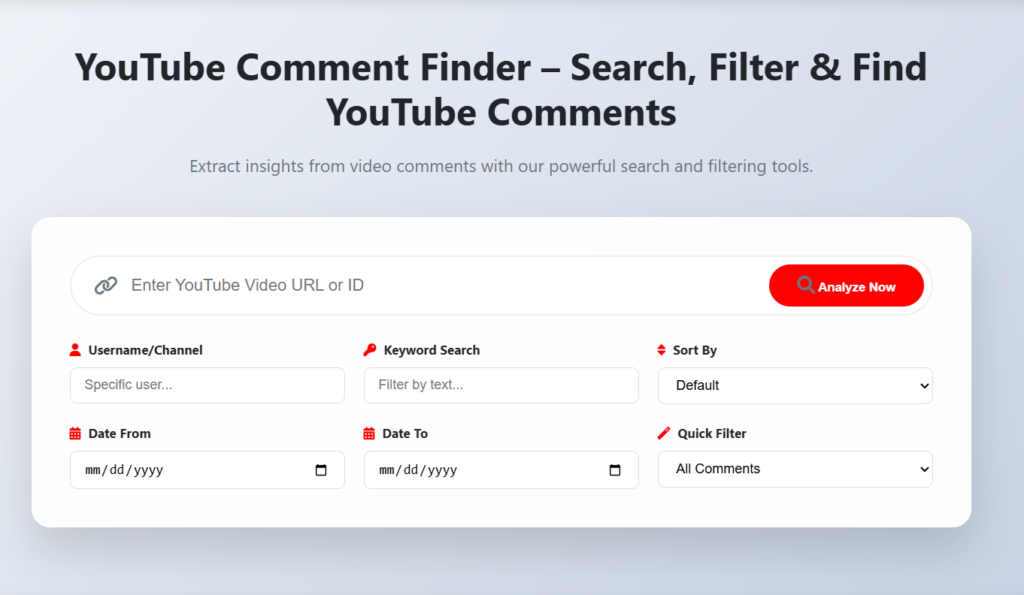
For searching comments by username in any real sense especially on popular videos or anything with a large comment section a dedicated YouTube comment finder by username is the only option that reliably gets the job done.
These tools connect directly to YouTube’s API and pull comment data without the page-rendering limitation that makes Ctrl+F unreliable. The workflow is simple: paste the video URL, type in the username or keyword you’re searching for, and it returns every matching comment from that video including replies inside threads. No scrolling, no hoping things load.
This is what I use now whenever I need to find something specific and the native YouTube options aren’t cutting it. It handles videos of any size, works on older uploads with years of comments attached, and catches replies nested inside threads that you’d never find manually. Creators especially find it useful if someone has been commenting on your channel for years and you want to pull up their history on a specific video, there’s no other realistic way to do that.
If you’re also reviewing older videos as part of the same research session, the YouTube Thumbnail Downloader on the same site lets you grab original thumbnails without opening each video separately, which saves time when you’re going through several uploads at once.
How Creators Actually Use Comment Search
Running a channel shifts how you think about this whole thing. It’s less about finding one specific comment and more about understanding who your audience is over time. Who keeps coming back? What questions show up repeatedly across different videos? Which subscribers have been around since your older uploads?
A lot of creators I know use comment search alongside reviewing their old video optimization. Looking at what tags a video was using when it was first published explains a lot about why it performed the way it did. The YouTube Tag Extractor makes that kind of historical check quick, and combining comment data with metadata gives you a much fuller picture of what was going on with an upload.
Some people also look back at older channel branding when they’re doing this kind of audit, since visual identity and subscriber growth often shifted together during a channel’s early years. If you want to recover a banner you used to have up, the YouTube Channel Banner Downloader gets it back without needing to dig through old screenshots.
For anyone specifically trying to track down their own old comments and hitting walls with the methods above, there’s a more detailed walkthrough at how to find a comment you posted on YouTube that covers extra situations like account switches and comments that got filtered.
When a Comment Is Just Gone
Sometimes you genuinely can’t find it and there’s a real reason for that.
If the original video was deleted by the creator voluntarily or by YouTube for a policy violation the comments go with it. That data isn’t stored anywhere publicly accessible. Same thing happens when a creator turns off comments on a video after it’s already been up for a while.
Spam filtering is a sneakier version of this problem. YouTube’s automated system sometimes hides a comment from everyone except the person who posted it. So if you can see your own comment when you’re logged in, but a friend on the same video says it’s not there, and no external tool finds it either that’s spam filtering. The comment technically exists but it’s not publicly visible. There’s nothing you can do about it from the outside.
Username changes add another layer of difficulty. Since YouTube made handles editable, some people have changed their display name a few times. If you’re searching for someone by a name they no longer use, you won’t find their recent activity, and searching their current name won’t surface anything they posted under an older one.
A Quick Note on Privacy
Public YouTube comments are public. Anyone who opens that video can read them. Searching for and reading public comments is completely normal and not a grey area.
Where it becomes a problem is using comment search to compile information on specific people for harassment, to follow someone’s activity without their knowledge, or to scrape large amounts of data in ways that violate platform rules. That kind of use falls outside YouTube’s Terms of Service regardless of whether the data itself is technically accessible.
Researching your audience, finding your own history, moderating your channel, studying how discussions developed around a topic all of that is fine. Using it to target individuals isn’t.
FAQ
Can I search YouTube comments by username without any tools?
Sort of. The Ctrl+F trick works on small videos where all the comments are already loaded on the page. On anything bigger it misses most of the comment section because of how YouTube renders content progressively. For reliable results on larger videos a comment finder tool is the only real option.
How do I find comments I personally posted a long time ago?
Start with youtube.com/feed/history/comment_history. If that doesn’t go back far enough, Google My Activity usually has a longer record and lets you filter by date range, which helps a lot.
I can see my own comment on a video but my friend says it’s not there. What happened?
That’s YouTube’s spam filter. The comment got auto-hidden from everyone except you while you’re logged in. It’s not publicly visible to others and won’t show up in external tools. There’s no fix from the user side.
Can a comment finder show all comments from one person on a specific video?
Yes. That’s exactly what it’s designed for. You give it the video URL and the username and it returns every comment from that person on that video, including any replies they left inside threads.
Does YouTube Studio let creators search by username?
It lets channel owners filter comments by keyword and moderation status on their own videos, but it doesn’t support full username-based search, and it doesn’t work on any videos outside your own channel.