Table of Contents
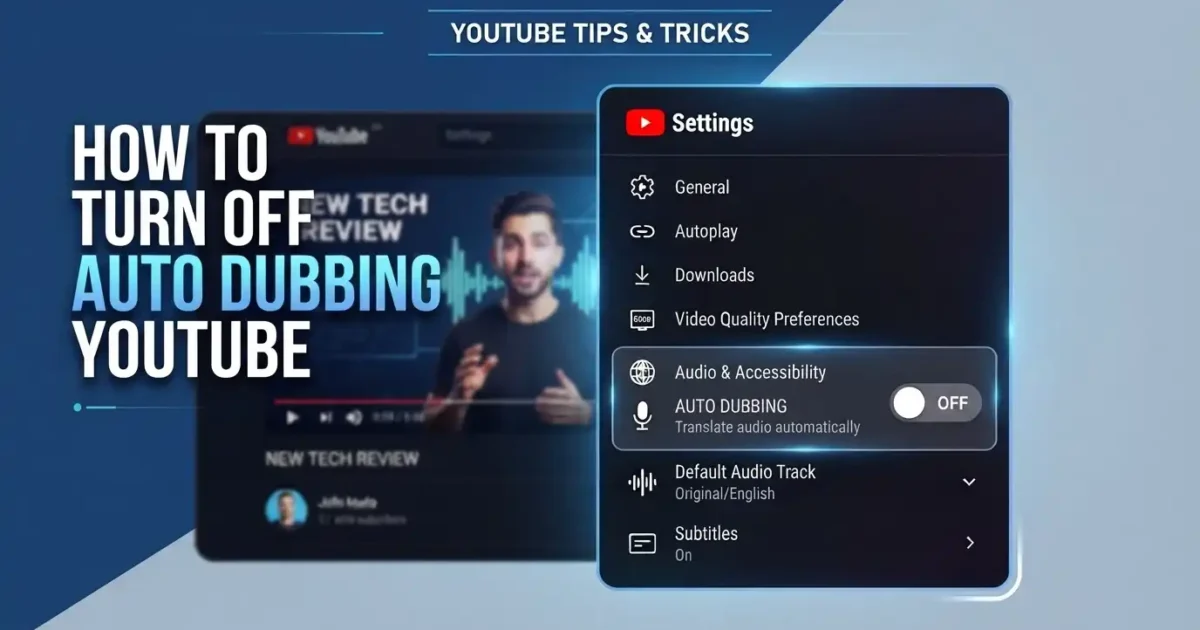
I noticed it while watching a Japanese woodworking channel a few months back. The guy’s mouth was moving, but the voice coming out was… not his. Flat, a little robotic, definitely not matching his lip movements. That’s when I went down the rabbit hole of figuring out how to turn off auto dubbing YouTube quietly turned on without really announcing it to anyone.
If you’ve had a similar moment, here’s the deal: there’s no single magic switch that kills auto dubbing everywhere, forever, for both viewers and creators. What you get instead is a set of options that differ depending on which side of the camera you’re on. Viewers can switch audio tracks video by video. Creators actually get a real toggle in YouTube Studio. Neither is perfect, but both work and I’ll walk through exactly where to find them.
This is for anyone who just wants their videos to sound like the person who actually made them.
What Is YouTube Auto Dubbing, Anyway?
The short version: YouTube’s AI listens to a video’s original audio, translates it and generates a synthetic voice track in another language. No creator effort required. A guy running a small bike repair channel out of Berlin might suddenly have his videos available in English, Portuguese and Hindi without ever recording a second take. Read about what editors mostly YouTubers are using.
It’s a genuinely useful idea on paper. Some languages even use “expressive speech,” which tries to hang onto the original speaker’s pitch and rhythm so the dub doesn’t sound quite so machine-made. Sometimes it actually works. Often it’s a bit uncanny.
Here’s the part that catches people off guard: this feature is on by default for eligible channels. Most creators didn’t opt in. It just showed up one day. And on the viewer side, YouTube tries to guess your “native” language based on your account activity and if a video’s original audio doesn’t match that guess, it may quietly serve you the dubbed version instead no prompt, no warning. That’s usually the moment people start searching for how to turn off auto dubbing YouTube seems to have enabled without asking. You can open YouTube Help Center to read more about it.
Why People Actually Want This Gone
I’ll be honest, not everyone minds it. Some viewers genuinely find it useful, especially for languages they don’t speak at all. But there’s a real, recurring set of complaints and they’re not unreasonable.
The biggest one is just: it’s not the creator’s real voice. Half the reason people watch a specific YouTuber is the way they talk. The pauses, the sarcasm, the little verbal tics. An AI dub flattens all of that. Comedy suffers the most timing is everything in a joke and a dubbed track almost never lands a punchline the same way the original did.
There’s also the surprise factor. A lot of people don’t even clock that they’re watching a dub until something feels slightly wrong the lips don’t sync, the emotional tone is off, the pacing feels stiff. By the time they notice, they’re already annoyed. Read about how get YouTube Channel data as CSV?
Creators have a different set of worries. For a lot of them, their voice is the brand. Handing that off to an AI, even for international audiences, can feel like losing a piece of what makes the channel theirs. Translation accuracy is another sore spot automated systems still butcher slang, cultural references and technical jargon on a regular basis and creators usually can’t hand-edit the dubbed script. And if international viewers bounce off a video because the dub feels off, that hits watch time and can quietly affect how the video performs with that audience going forward.
So yeah, the frustration is legitimate on both sides. Let’s get into fixing it.
How to Turn Off Auto Dubbing YouTube as a Viewer
Here’s the thing nobody likes hearing: as a regular viewer, there’s no permanent, set-it-and-forget-it switch. What you actually have is a manual override per video, plus a language preference setting that nudges the odds in your favor.
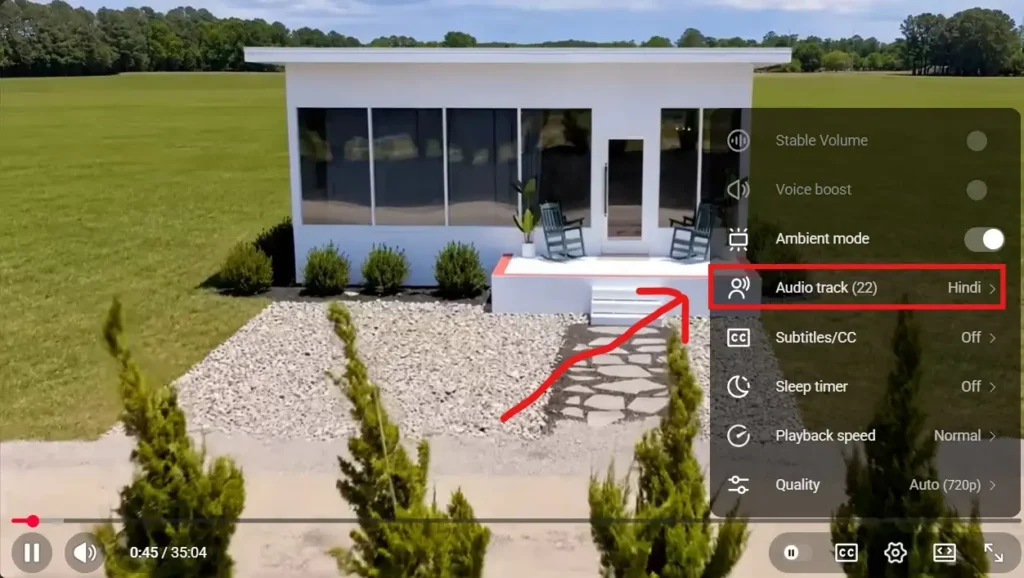
On desktop, here’s what actually works:
- Open the video.
- Click the gear icon at the bottom right of the player.
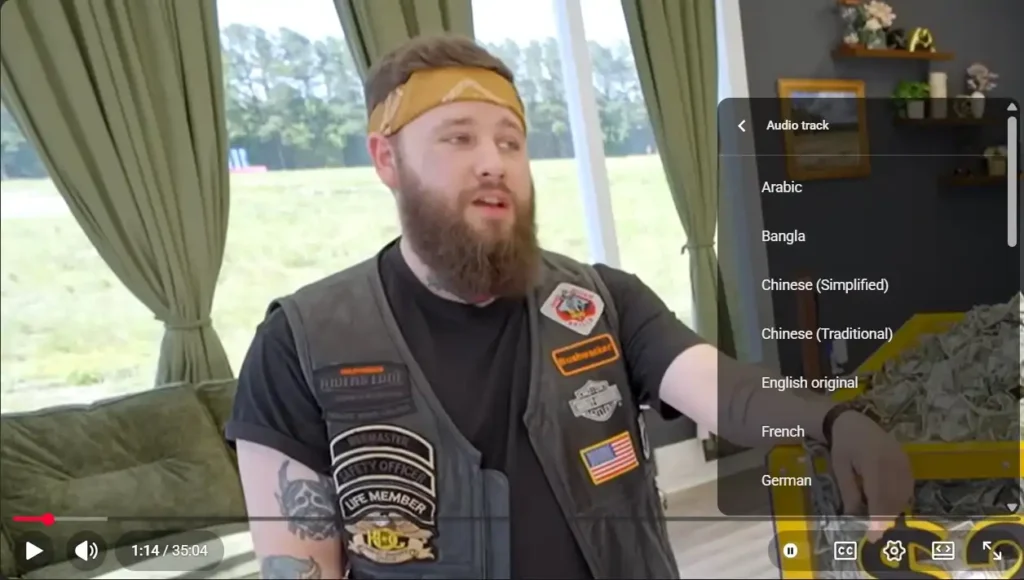
- Click “Audio track.”
- Look through the list for the one labeled “original” something like “Portuguese (Original).”
- Click it. Done. The real voice kicks in almost instantly.
Takes maybe five seconds once you know where it lives. The annoying part is you’ll need to repeat this on every video, since the choice doesn’t stick account-wide.
Setting a preferred language helps a little:
Dig into your YouTube account settings and set your preferred content language to match the channels you actually watch. It won’t force original audio every time, but it does seem to reduce how often YouTube defaults you into a dub in the first place. Think of it as tilting the odds, not flipping a switch.
If you’re specifically trying to figure out how to turn off auto dubbing YouTube keeps applying on desktop, this manual per-video switch is, right now, the most dependable route.
How to Turn Off Auto Dubbing YouTube on Mobile
Mobile works almost the same way, just with the buttons in slightly different spots and Shorts are their own weird little animal.
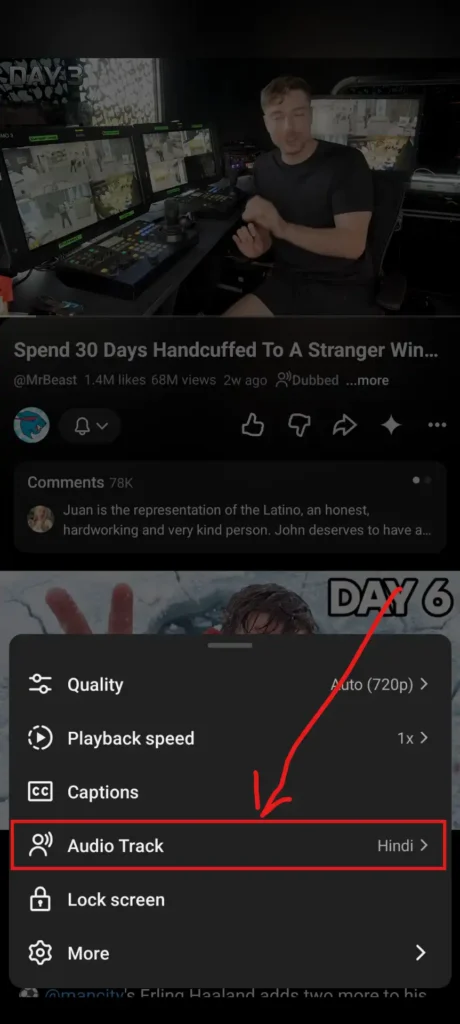
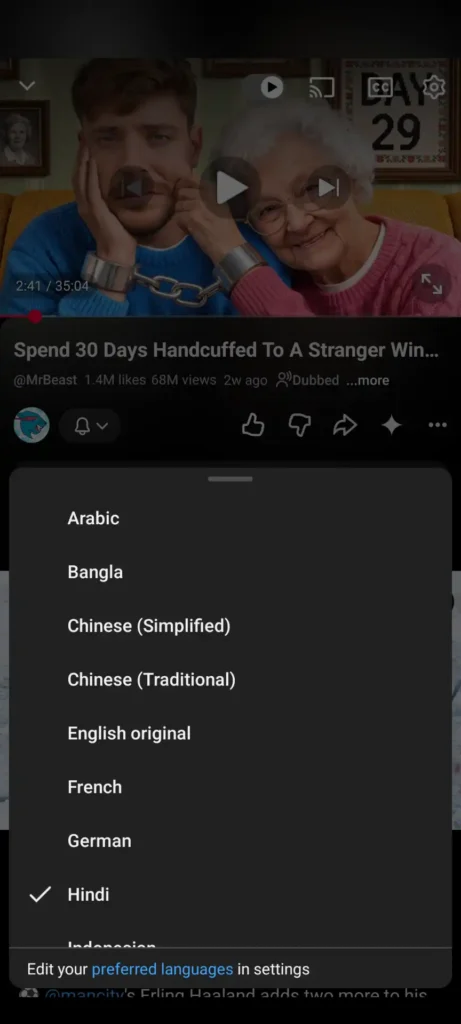
Regular videos in the app:
- Tap the video to bring up the controls.
- Tap the gear icon (top right or bottom right, depending on your app version it moves around).
- Tap “Audio track.”
- Pick the one marked “original.”
Shorts, which behave differently for no obvious reason:
There’s no gear icon here. Instead, look for the three-dot menu, usually tucked in the top right corner while a Short is playing. Tap that and “Audio track” should show up, same original-language option waiting inside. You can use our Youtube Tool to find YouTube Comments.
One thing that trips people up: if you’re watching YouTube through a mobile browser instead of the actual app, the audio track option sometimes just isn’t there at all. If that happens, switch over to the app it usually fixes it immediately.
How to Turn Off Auto Dubbing YouTube as a Creator
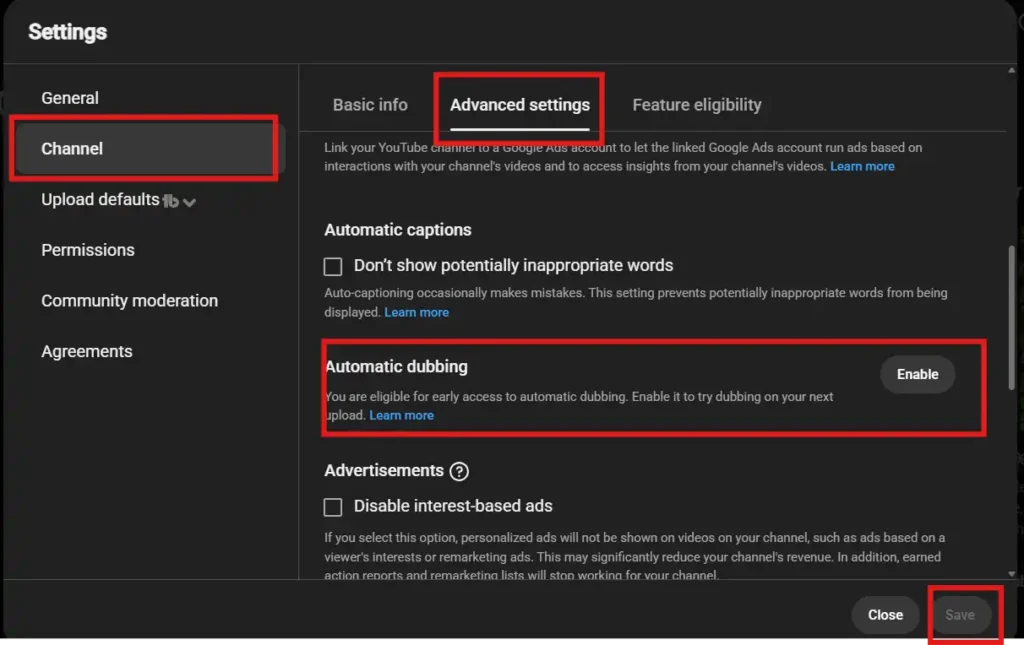
Good news if you run a channel: you actually get a real, working toggle. No workarounds needed.
- Log into YouTube Studio.
- Click “Settings” on the left.
- Click “Channel.”
- Click “Advanced settings.”
- Scroll to “Automatic dubbing.”
- Uncheck “Allow automatic dubbing.”
- Hit “Save.”
That stops YouTube from generating new dubs on anything you upload from here on out. It won’t retroactively strip dubs off videos you’ve already published those get managed separately, video by video, in the Content tab.
If going nuclear feels like overkill, there’s a middle option. Instead of turning the whole thing off, enable “Manually review dubs before publishing.” You can choose to review every language or just the experimental ones. The dub still gets made, it just won’t go live until you sign off on it which is honestly the setting I’d recommend if translation errors are your main worry rather than the concept itself.
Some creators skip the automated dub entirely and bring in a real voice actor or their own translated audio instead. Worth knowing: if an automatic dub already exists for that language, you’ll usually need to delete it first before your custom track can take its place.
What If You Don’t Even See the Audio Track Option?
Happens more often than you’d think and it’s usually one of a handful of reasons.
Sometimes the video simply was never eligible for dubbing too long, barely any speech or an unsupported source language. No dub exists, so there’s nothing to switch between.
Sometimes it’s just a rollout thing. YouTube doesn’t flip features on for everyone simultaneously; it trickles out by region, device and app version. If your app’s a version or two behind, update it and check again.
Mobile browsers, as mentioned, are often just missing this menu outright. Open the app instead.
And if you’re a creator and the “Automatic dubbing” section is nowhere in your Advanced settings, that likely means your channel hasn’t been made eligible yet. YouTube bases this on factors like channel size and content type that aren’t really visible from your end, so there’s not much to do but wait it out.
Common Problems (and the Fixes That Actually Help)
The most annoying recurring issue: you switch to original audio and somehow it reverts back to the dub. This tends to happen after refreshing or clicking into a new video the setting just doesn’t always carry over. Reselecting it each time you land on a new video is, unfortunately, the fix.
Translation quality is the other big complaint, mostly from creators. Idioms, slang and humor are where AI translation still stumbles the hardest. If your channel’s dubs keep mangling jokes or technical terms, turning on manual review at least gives you a chance to catch it before it goes public.
Shorts also just hide their settings differently than regular videos, which throws people off constantly. If the usual gear icon’s missing, check for the three-dot menu instead it’s there, just relocated.
A Few Habits That Help
If your main goal is just hearing real voices as often as possible: keep your language preferences aligned with what you actually watch and get in the habit of checking the audio track early in a video rather than five minutes in after you’ve already noticed something’s off.
And to be clear switching tracks doesn’t hurt the creator or mess with the video in any way. You’re just picking a different, officially available version that was already sitting there.
Final Thoughts
Auto dubbing is a genuinely clever idea that doesn’t always land the way it’s supposed to. There’s no universal off-switch for viewers, but the manual audio track swap takes seconds and works reliably almost every time. Creators, meanwhile, get a proper setting inside YouTube Studio that either shuts the whole thing off or lets them review dubs before they go live whichever fits how much control they actually want.
Since YouTube keeps tweaking this feature, it’s worth checking back on these settings every so often, especially if you manage a channel. For now though, this is where things stand and knowing exactly where these toggles live puts the choice back in your hands whether you’re watching or uploading.
FAQs
Can I turn off YouTube auto dubbing permanently?
At the moment, YouTube does not offer a universal setting that permanently disables auto dubbing for every viewer. If a video includes multiple audio tracks, you can usually switch back to the original audio from the Audio Track menu. Available options may vary depending on the video and your account.
Why is YouTube playing a different voice?
If you hear a different voice than expected, the video may be using YouTube’s AI-generated dubbed audio. YouTube can automatically select a translated audio track based on your language preferences or the available audio options for that video.
How do I switch back to the original audio on YouTube?
Open the video, click or tap the Settings icon, and look for Audio Track. If the video has multiple audio tracks, choose Original to hear the creator’s original voice.
Can creators disable auto dubbing on YouTube?
Yes, eligible creators who have access to YouTube’s automatic dubbing feature can manage it through YouTube Studio. The available settings may vary depending on the creator’s account and YouTube’s feature rollout.
Why can’t I find the Audio Track option?
The Audio Track option only appears on videos that include more than one audio track. If you don’t see it, the video may only have the original audio, or the creator may not have enabled additional language tracks.
Does turning off auto dubbing also disable subtitles?
No. Auto dubbing and subtitles are separate features. You can watch a video with the original audio while keeping subtitles turned on, or you can disable subtitles without changing the audio track.