Table of Contents
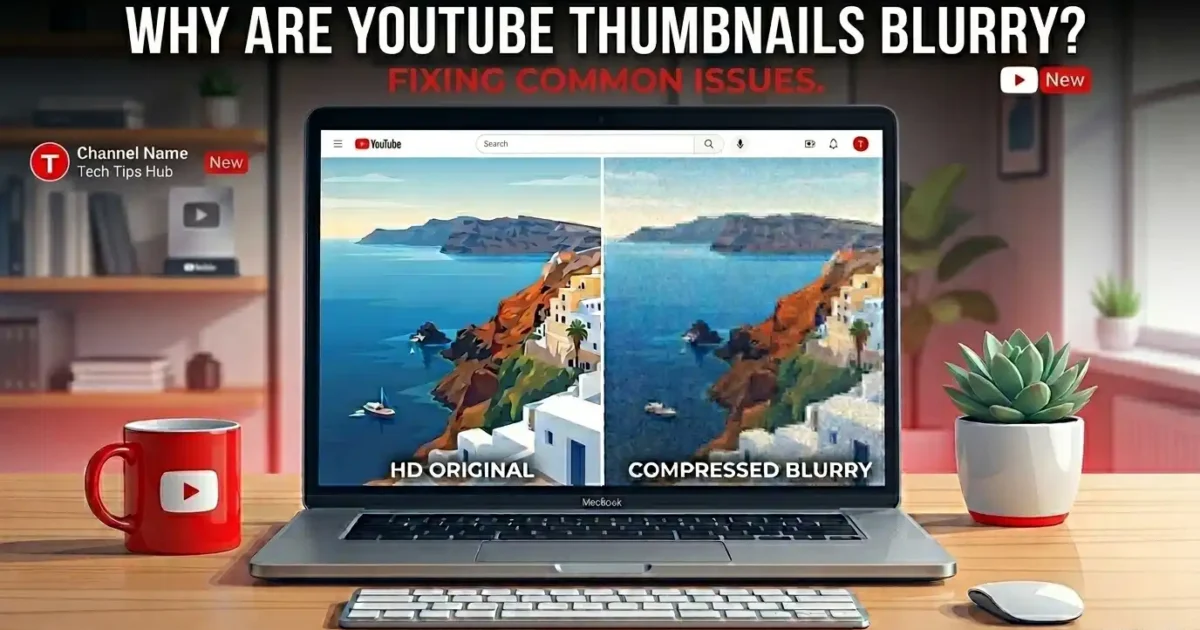
You just uploaded a video. You spent twenty minutes designing the perfect thumbnail in Canva or Photoshop. It looked crisp on your screen. Then you check YouTube and… it looks like someone smeared Vaseline on your camera lens.
If you’ve ever asked yourself why are YouTube thumbnails blurry, you’re not imagining things, and you’re not alone. This happens to new creators and channels with a million subscribers alike. You can also read how to fix Youtube thumbnail not showing.
Quick Answer: YouTube thumbnails usually look blurry because of low image resolution, heavy compression during upload, incorrect dimensions, or temporary processing delays right after publishing. Device screen size, internet speed, and cached data can also make a sharp thumbnail appear fuzzy on certain screens.
Almost every case of a blurry YouTube thumbnail traces back to a handful of fixable causes: compression, resolution, upload mistakes, device limitations, or connection issues. Once you know which one is hitting you, fixing it usually takes five minutes. Let’s walk through why this happens and how to stop it.
What Causes YouTube Thumbnails to Look Blurry?
YouTube thumbnails typically look blurry because the source image had a low resolution to begin with, got compressed too aggressively during upload, or was resized incorrectly. Add in factors like a slow internet connection, an outdated app, or YouTube still processing the file, and even a sharp image can temporarily look soft or pixelated on certain screens.
That’s the short version. Now let’s get into the specifics, because “compression” and “resolution” mean different things depending on what actually went wrong on your end.
Most Common Reasons YouTube Thumbnails Look Blurry
There isn’t one single culprit here. Blurriness usually comes from a mix of small mistakes stacking on top of each other. Here’s what tends to cause it.
Low resolution uploads. If your original image is small, say 640×360 pixels, YouTube has to stretch it to fit the display size on most devices, and stretching always makes it look soft.
Wrong thumbnail dimensions. YouTube expects a 16:9 aspect ratio. Square, portrait, or oddly sized images get cropped or resized automatically, which can introduce blur or awkward framing.
Heavy image compression. Saving your thumbnail as a low-quality JPEG to shrink the file size costs you fine detail, especially around text or thin lines.
Poor export settings. A lot of creators design in one tool, then screenshot the canvas instead of exporting properly. Screenshots are almost always lower quality than a direct export.
JPEG artifacts. JPEG uses lossy compression, which permanently discards some image data to shrink the file. This creates small blocky patterns around edges, particularly in high-contrast areas like white text on a dark background, and is a common reason thumbnail text looks slightly fuzzy.
Screenshot thumbnails. Grabbing a random video frame and using it as a thumbnail almost guarantees lower sharpness, since video frames compress differently than standalone images.
Upscaled images. Blowing up a small photo with an AI tool or Photoshop adds pixels that weren’t there originally. That’s a shortcut, not a fix, and it usually looks it.
Thumbnail processing delays. Right after upload, YouTube generates several versions of your thumbnail for different placements. Checking too early can show you a placeholder or low-res version.
Browser-related issues. Some browsers cache old thumbnail versions and don’t refresh, so you keep seeing a blurry preview even after YouTube updates the file.
Internet connection problems. A slow connection means YouTube serves a lower-quality preview first to save bandwidth, then upgrades it once more data loads.
Caching problems. Your device, browser, and YouTube’s own servers all cache images. If any of these hold an outdated file, you’ll see blur unrelated to your actual upload.
Mobile app issues. The YouTube app sometimes prioritizes data savings over image quality, particularly on cellular data instead of Wi-Fi.
TV app display limitations. Older smart TVs and streaming boxes often run apps that were never built to render sharp images at large screen sizes.
YouTube Thumbnail Size and Resolution Explained
If you only fix one thing after reading this article, fix your image dimensions. This single change solves the majority of blur complaints. You can download Youtube thumbnail for reference to design your own thumbnail.
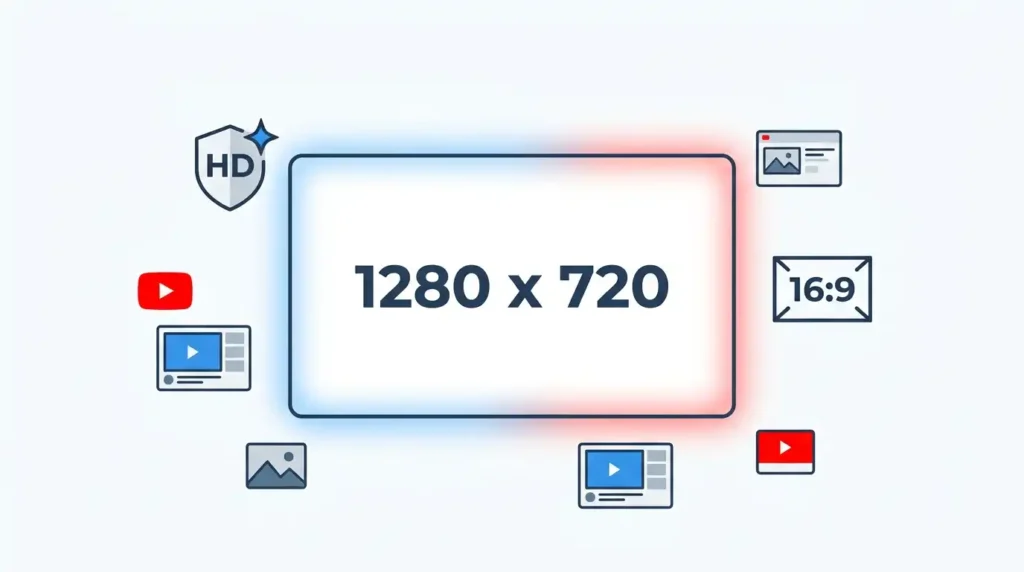
YouTube’s own thumbnail guidelines recommend a resolution of 1280 x 720 pixels, with a minimum width of 640 pixels. Anything smaller gets stretched, and stretching is where blur starts.
The required aspect ratio is 16:9, matching the video player itself. If your image doesn’t match, YouTube crops it, sometimes cutting off text or faces you wanted visible.
File size matters too. YouTube caps uploads at 2MB, so the goal is a balance: high enough quality to stay sharp, small enough to upload cleanly.
Here’s a quick reference table:
| Setting | Recommended Value |
|---|---|
| Dimensions | 1280 × 720 pixels |
| Aspect Ratio | 16:9 |
| Format | JPG, PNG, GIF, or BMP (PNG or JPG preferred) |
| Maximum Size | 2 MB |
| Quality Recommendation | Export at 90–100% quality, avoid repeated re-saving |
On format: PNG tends to preserve text and sharp edges better because it uses lossless compression, which matters a lot if your thumbnail has bold text overlays. JPG produces smaller files and works fine for photo-heavy thumbnails without much text. If your thumbnail is mostly a photo, JPG at high quality is usually fine. If it’s got crisp text or graphics, PNG is the safer bet.
Why Is My YouTube Thumbnail Blurry After Upload?
You uploaded a properly sized, high-quality image, and it still looks a little soft. What gives?
This is one of the most common questions creators ask, and it usually comes down to timing rather than image quality. YouTube compresses every thumbnail you upload to standardize file sizes and load times across billions of videos. Some quality loss during this step is normal and mostly invisible, but if your source image was already borderline, the compression pushes it over the edge into noticeably blurry territory.
There’s also a processing delay to consider. When you first publish, YouTube generates several thumbnail sizes for different placements across the platform. For the first few minutes, sometimes longer, you might see a lower-resolution placeholder while the higher-quality version finishes processing.
Browser cache is another sneaky cause. If you keep refreshing your video page and it still looks blurry, your browser might be showing a cached version from before YouTube finished updating the file. This is especially common if you replaced an old thumbnail with a new one.
CDN updates play a role too. YouTube distributes content through servers around the world, and it takes time for a new thumbnail to sync across every location. Someone in another country might see the sharp version before you do, purely based on which server is serving your area.
Troubleshooting steps that actually help:
- Wait 15–30 minutes before judging the final result.
- Clear your browser cache or open the video in an incognito/private window.
- Check the thumbnail on a different device entirely.
- Re-download your thumbnail from YouTube Studio to see the actual uploaded file, not your local copy.
- If it’s still blurry after an hour, re-upload with a properly sized, less compressed image.
One mistake I see constantly: creators editing the same JPEG file over and over, saving each time. Every save re-compresses the image a little more, even if you didn’t change much. After five or six rounds of edits, the quality has quietly degraded without anyone noticing until it’s uploaded.
Why Are YouTube Thumbnails Blurry on Mobile?
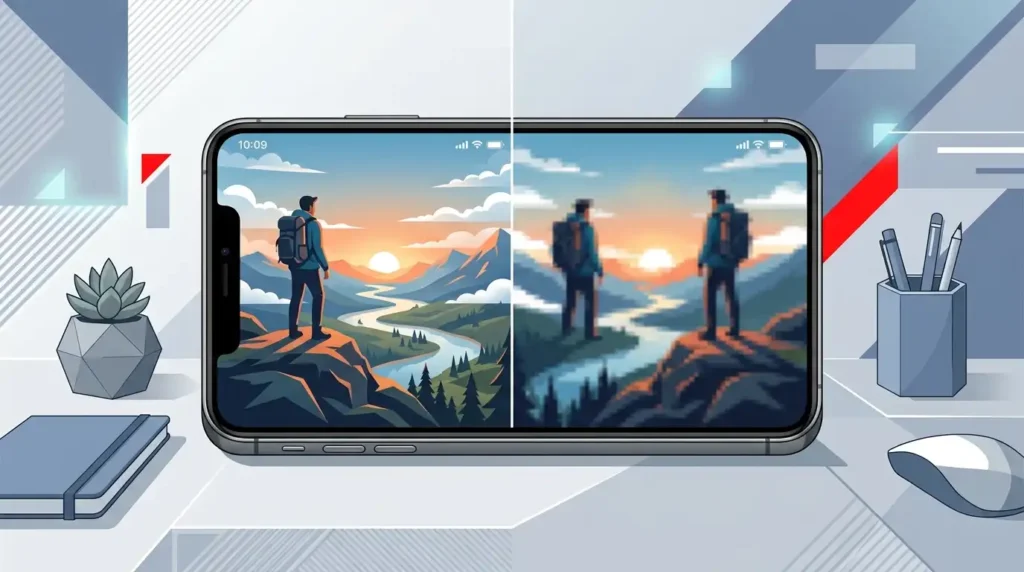
Mobile phones handle images differently than desktop browsers, and that creates its own set of quirks.
Screen scaling is the biggest factor. Phones vary wildly in screen resolution and pixel density, and YouTube’s app has to resize your thumbnail to fit dozens of different screen sizes. On some devices, that scaling introduces a slight softness that isn’t present on desktop.
App cache builds up over time too. If you’ve been using the app for months without clearing data, old cached thumbnails can linger instead of showing the updated one.
Slow internet matters, especially on 3G or weak 4G, which often triggers YouTube to load a lower-quality thumbnail first, then quietly upgrade it once a stronger connection is detected.
Data Saver mode, which many people enable to protect their data plan, deliberately reduces image and video quality across the app. If it’s on and you’re wondering why is my YouTube thumbnail blurry, check this setting first.
Older, budget devices also struggle to render high-resolution images quickly. The thumbnail loads, but rendering it at full sharpness takes a moment longer than on a newer phone.
Why Are YouTube Thumbnails Blurry on Smart TVs?
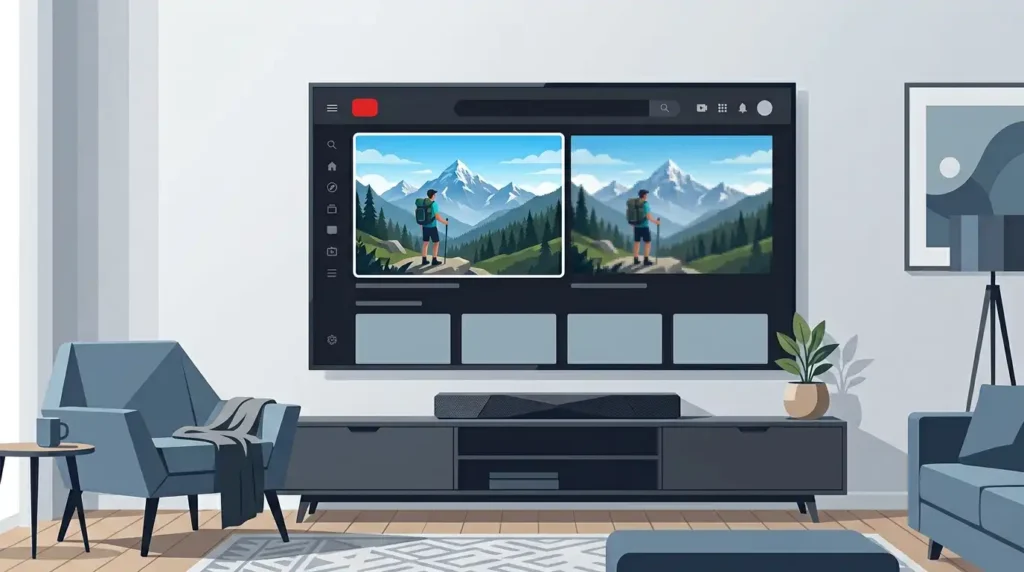
Smart TV screens are unforgiving. A blur that’s barely visible on a phone becomes obvious on a 55-inch display sitting six feet from your couch.
Large screen scaling is the core issue. Your thumbnail was likely designed at 1280×720, fine for phones and laptops, but a big television has to stretch that same image significantly to fill the screen. Any softness in the original gets magnified.
Compression artifacts also become far more noticeable at that scale. What looked like a clean edge on your laptop can show visible blocking on a TV.
Older TV apps are another factor. Many smart TVs run YouTube through apps that haven’t been updated in years, and these sometimes fetch lower-resolution files by default to save bandwidth.
Display resolution mismatches matter too. A 4K TV expects much higher resolution content than a 1080p TV to look sharp, and your thumbnail’s fixed resolution can’t scale infinitely without some loss.
And once again, internet speed plays a role. TVs connected via Wi-Fi far from the router often get a weaker signal than a phone sitting right next to it, leading to lower-quality previews loading first.
How to Fix Blurry YouTube Thumbnails
Here’s the practical checklist. Work through these in order and most blur problems disappear.
- Use 1280×720 resolution. This is non-negotiable. Design at this size or larger, never smaller.
- Avoid screenshots. Always export your thumbnail directly from your design software instead of screenshotting the canvas.
- Export in high quality. If your software gives you a quality slider, keep it at 90% or above.
- Use PNG when possible, especially for thumbnails with text or sharp graphic elements.
- Sharpen images carefully. A light sharpening filter can help, but overdoing it creates a harsh, artificial look. Subtle is better.
- Clear your browser cache before checking your uploaded thumbnail.
- Check the thumbnail after upload, but give it 15–30 minutes before assuming something’s wrong.
- Wait for processing to fully complete rather than judging the result immediately.
- Test on multiple devices, phone, laptop, and TV if you have access, since each renders differently.
- Avoid excessive compression. Don’t save the same file repeatedly, and don’t use aggressive file-size-shrinking tools unless necessary.
If you’re regularly resizing images for uploads, a dedicated YouTube Thumbnail Resizer tool can save time and keep your dimensions consistent across every video.
Best Practices for High-Quality YouTube Thumbnails
Beyond just fixing blur, a few habits make your thumbnails consistently sharp and effective.
Text readability matters more than most people think. Keep fonts bold and large enough to read at a small size, since most viewers see your thumbnail as a tiny image in a crowded feed, not full screen.
Contrast between text and background prevents both blur and readability issues. Light text on dark, or dark text on light, holds up much better under compression than similar tones blending together.
Font sizing should assume the worst case: someone scrolling on their phone with the brightness turned down. If you can’t read it comfortably at that size, neither can they.
Minimal clutter helps too. Thumbnails packed with too many elements compress worse than clean, simple designs.
Image optimization before upload, meaning proper resizing and reasonable compression, saves you from relying on YouTube’s automatic processing to fix problems you created.
Testing thumbnails on mobile before publishing gives you a realistic preview of what most of your audience will actually see, since mobile traffic dominates YouTube viewership.
Maintaining consistency across your channel, similar fonts, colors, and layouts, helps viewers recognize your content instantly and makes it easier to spot quality issues, since you know what “normal” looks like.
Branding elements like a consistent logo placement or color scheme add a professional touch that compounds as your channel grows.
If your thumbnails keep coming out inconsistent, a YouTube Thumbnail Text Generator can help standardize your text styling across every upload.
Conclusion
Blurry YouTube thumbnails almost always come down to one of a few things: an image that was too small to begin with, compression squeezing out detail, wrong dimensions forcing YouTube to stretch or crop your file, or a temporary processing and caching delay that clears up on its own.
The fix is rarely complicated. Start with a properly sized 1280×720 image, export it carefully instead of screenshotting your design, avoid repeatedly re-saving the same compressed file, and give YouTube a little time after upload before assuming something’s broken.
If you’ve tried all of this and your thumbnail still isn’t displaying correctly, it’s worth checking a dedicated YouTube Thumbnail Not Showing Fix guide, or simply re-uploading with a fresh, high-quality export. You can also grab a copy of your current live thumbnail with a YouTube Thumbnail Downloader to check exactly what YouTube is actually serving to viewers right now.
Get the dimensions and export quality right from the start, and blurry thumbnails become a problem you rarely have to think about again.
Frequently Asked Questions
Does YouTube reduce thumbnail quality?
Yes, to some degree. YouTube compresses every uploaded thumbnail to standardize file sizes and loading speed. This is usually minor and unnoticeable if your original was high resolution and well-exported, but it becomes obvious if the source file was already low quality.
What is the best thumbnail size for YouTube?
The best size is 1280×720 pixels with a 16:9 aspect ratio. This matches the video player’s dimensions exactly, avoids stretching or cropping, and meets YouTube’s minimum width recommendation of 640 pixels.
Why do thumbnails look blurry only on my phone?
This usually points to mobile-specific factors: Data Saver mode, a weak cellular connection, app cache buildup, or an older device struggling to render high-resolution images. Try Wi-Fi, clearing the app’s cache, or disabling Data Saver mode.
Is PNG better than JPG for YouTube thumbnails?
PNG preserves sharp text and clean edges better since it’s lossless, making it ideal for text-heavy thumbnails. JPG works well for photo-based thumbnails with less text, since it produces smaller files without much visible quality loss.
How long does YouTube take to process thumbnails?
Processing usually completes within a few minutes, though it can occasionally take up to 30 minutes to fully update across all placements. If it’s still blurry after that, the issue is more likely the source image than processing delays.