Table of Contents
If you’ve ever searched what is the use of advanced embedded in YouTube Studio, you’re probably trying to figure out what this setting actually does and whether it matters for your channel.
The answer is yes, it does matter, especially if you want your videos to appear on websites outside YouTube.
The confusion comes from the fact that YouTube uses the word Advanced in several places. Sometimes people mean the Advanced tab inside a video’s settings, where the Allow Embedding option lives. Others are talking about Advanced Features, which unlock extra creator tools after verification. Larger publishers may even mean advanced embedding controls available through Content Manager.
Because of this, many creators end up wondering if these settings are connected or if they serve completely different purposes.
This guide explains everything in simple language, including features many articles only briefly mention.
What Does Embedded Mean on YouTube?
Before talking about Advanced settings, it helps to understand what embedding actually means.
Embedding is simply placing a YouTube video on another website. Also read how to get Youtube Channel Data in CSV
You’ve probably seen this many times.
You might read a blog post about video editing and watch a tutorial without ever leaving the page. Schools often place lessons inside online classrooms. Businesses embed product demonstrations on landing pages, and news sites regularly include YouTube videos inside articles.
Instead of sending visitors directly to YouTube, embedded videos allow people to watch content right where they already are.
For creators, this can be a great way to reach new audiences.
A helpful tutorial can be shared on dozens of websites, bringing in viewers who may never have found your channel otherwise.

The Advanced Tab for Video Embedding Settings
For most creators, this is what they are really looking for when they ask about Advanced Embedded settings.
Inside YouTube Studio, every uploaded video has an Advanced section.
This area contains additional settings that control how your content behaves.
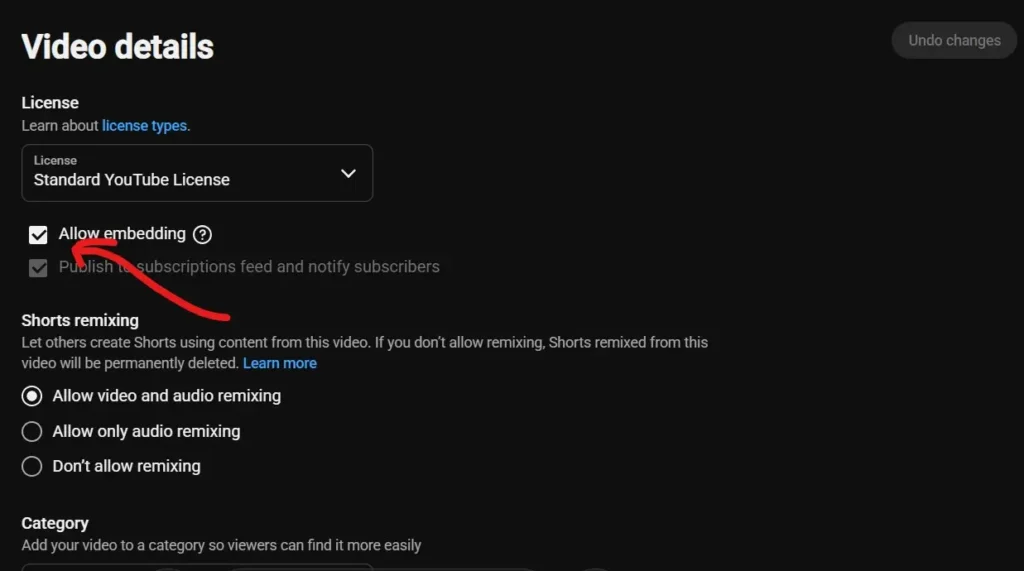
One of the most important options is called Allow Embedding.
This setting determines whether websites can display your video using YouTube’s embedded player.
When the option is enabled, other websites can place your video directly on their pages.
When it is disabled, viewers can only watch the content on YouTube itself.
Although it looks like a small checkbox, it plays an important role in how your videos are distributed across the internet.
Most public videos have embedding enabled by default, which is why many creators never think about it.
However, it becomes very important when someone says:
“I tried embedding your video, but it doesn’t work.”
In many cases, the issue isn’t with the website at all.
The embedding permission has simply been turned off.
How to Find the Allow Embedding Option
Finding this setting is easier than many creators expect.
Open YouTube Studio.
Go to Content.
Select a video.
Click Show More.
Scroll down to License and Distribution.
Here you will see the Allow Embedding checkbox.
If it is enabled, websites can display your video.
If it is disabled, embedding will not work.
Why Most Creators Keep Embedding Enabled
Imagine you publish a tutorial about video editing.
A blogger writing an article about editing tips may want to include your video.
If embedding is enabled, readers can watch it immediately.
The same thing happens with educational websites, online communities, software documentation pages, and business blogs.
Allowing embedding gives your videos more opportunities to be discovered.
Another thing many creators don’t realize is that embedded views still count.
People watching your video through an embedded player can still contribute to your view count and YouTube Analytics.
That means embedding often helps creators gain additional exposure rather than taking viewers away.
For channels focused on growth, leaving embedding enabled is usually the better choice.
When Should You Disable Embedding?
There are situations where turning embedding off makes sense.
Suppose you sell access to premium training videos.
You may not want those videos appearing on unrelated websites.
Some businesses have licensing agreements that limit where content can be shown.
Membership communities sometimes disable embedding to keep content exclusive.
In these situations, restricting embedding gives creators more control over distribution.
For regular public content, though, enabling embedding is generally recommended.
Troubleshooting Videos That Won’t Embed
One reason people search for Advanced Embed settings is because a video refuses to display on a website.
The first thing to check is the Allow Embedding option.
If embedding has been disabled, the problem is solved immediately by enabling it again.
However, there are other reasons videos may not embed properly.
Age-restricted content can sometimes have limitations.
Certain copyrighted materials carry distribution restrictions.
Some region-specific videos may behave differently depending on the viewer’s location.
Membership-only content can also have restrictions that prevent embedding.
Checking the Advanced settings inside YouTube Studio should always be the first troubleshooting step.
It only takes a few seconds and often solves the issue. Also read about why comments are turned off in detail.
What Are Advanced Features in YouTube Studio?
Another reason people get confused is because YouTube also has something called Advanced Features.
These are not the same as embedding permissions.
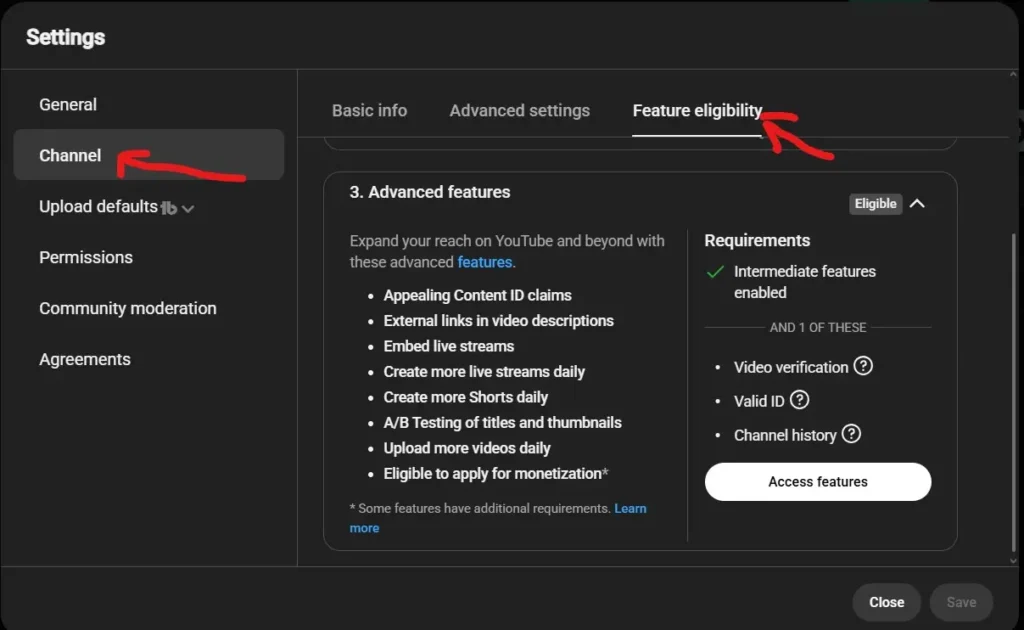
Advanced Features are additional tools YouTube unlocks for creators after verification.
Channels with access to Advanced Features can use capabilities beyond standard accounts.
Some examples include embedding live streams, increasing upload limits, accessing additional moderation tools, and pinning comments.
These features are designed to give trusted creators more flexibility.
YouTube usually requires channels to complete verification before unlocking them.
This can happen through video verification, ID verification, or simply by maintaining a positive channel history over time.
Because both systems use the word Advanced, creators often assume they are related.
In reality, they serve different purposes.
One controls how videos are shared.
The other unlocks more creator tools.
Embedding Live Streams
Creators with Advanced Features enabled can also benefit from live stream embedding.
This is especially useful for businesses, educators, gaming creators, and event organizers.
Instead of sending visitors to YouTube, a live stream can be displayed directly on a website.
For example, a company hosting a webinar can place the live stream on its registration page.
Schools can embed online classes.
Gaming communities can showcase tournaments without forcing viewers to leave the website.
This creates a smoother experience for visitors and helps organizations keep audiences within their own platforms.
Advanced Embedding Controls for Content Manager Users
Most creators only see the basic embedding options.
However, larger publishers have access to more advanced controls through YouTube Content Manager.
These settings provide much more flexibility.
Instead of simply allowing or blocking embedding everywhere, publishers can create specific rules.
For example, they may allow embedding on all websites except one domain.
Others might block playback inside selected applications.
Media companies often use these settings to manage licensing agreements and content rights.
Regular creators usually do not need these tools, but understanding them explains why some videos behave differently from standard uploads.
AI Features Inside YouTube Studio
YouTube has also started adding AI-powered tools directly into Studio.
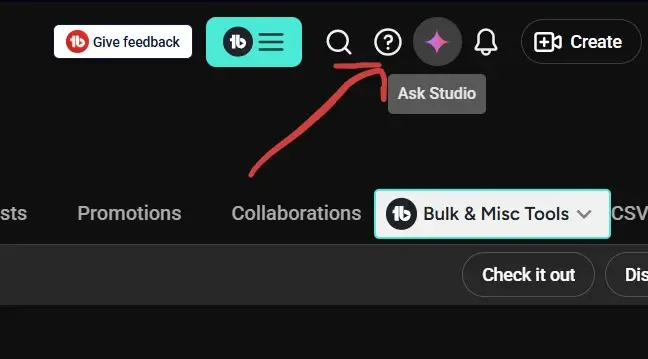
One example is Ask Studio.
This tool acts like a creative assistant for creators.
Instead of manually digging through analytics, users can ask questions about their audience and receive summarized insights.
YouTube has also introduced AI-generated comment summaries.
Channels with thousands of comments can quickly understand what viewers are talking about without reading every message individually.
These summaries can highlight common questions, viewer requests, and recurring feedback.
While these tools are not directly related to embedding permissions, they are part of YouTube’s growing collection of advanced capabilities inside Studio.
Does Embedding Affect SEO?
Many website owners wonder whether embedding videos helps rankings.
Google has never confirmed that embedding videos directly boosts SEO.
However, videos can improve the overall experience visitors have on a page.
People often stay longer when they can watch a tutorial instead of only reading text.
A useful video can make an article more engaging and easier to understand.
That is why businesses, educators, bloggers, and software companies frequently embed YouTube videos alongside written content.
Videos add value, improve engagement, and can encourage visitors to spend more time interacting with a page.
Should You Keep Embedding Enabled?
For most creators, the answer is yes.
Allowing embedding helps your content reach more people.
A teacher might use your tutorial in a lesson.
A blogger may include your video inside an article.
A business could showcase your content in a knowledge base.
All of these situations create additional opportunities for discovery.
Unless your videos are private, premium, or restricted by licensing agreements, enabling embedding is usually the best approach.
Final Thoughts
So, what is the use of advanced embedded in YouTube Studio?
For most creators, it means controlling whether videos can appear on websites outside YouTube through the Allow Embedding setting.
It can also refer to YouTube’s Advanced Features, which unlock extra capabilities such as live stream embedding, higher upload limits, and additional creator tools.
For large publishers, advanced embedding extends even further through Content Manager, allowing domain restrictions and app-level controls.
And as YouTube continues adding AI-powered features like Ask Studio and comment summaries, Studio itself is becoming much more powerful than it was just a few years ago.
Although the setting may seem small at first, understanding it gives creators better control over how their videos are shared, discovered, and experienced across the web.
FAQs
What is the use of advanced embedded in YouTube Studio?
The Advanced Embedded settings in YouTube Studio mainly allow creators to control whether videos can be embedded on websites outside YouTube. The most important option is Allow Embedding, which enables or disables video embedding.
Where can I find the Allow Embedding option in YouTube Studio?
Open YouTube Studio, go to Content, select a video, click Show More, and scroll to the License and Distribution section. There you will find the Allow Embedding checkbox.
Why is my YouTube video not embedding on a website?
Embedding issues usually happen because the Allow Embedding setting is disabled. Other possible reasons include age restrictions, copyright limitations, regional restrictions, or membership-only content.
Do embedded YouTube videos count as views?
Yes. Views generated through embedded players generally count toward your video’s total view count and are included in YouTube Analytics.
What are Advanced Features in YouTube Studio?
Advanced Features are additional creator tools unlocked after verification. These features may include live stream embedding, higher upload limits, extra moderation options, and other channel capabilities.