
Table of Contents
Wondering how to get my YouTube channel data as CSV? You’re not the only one. Many creators want to download their channel data to check performance, create reports, or simply keep a backup.
The good news is that how to get my YouTube channel data as CSV isn’t difficult once you know where to look. YouTube already gives creators a few ways to export information, and most people can do it in just a few minutes.
Quick answer: You can export YouTube channel data as CSV through YouTube Studio Analytics, Google Takeout, or the YouTube API. For most creators, YouTube Studio is the easiest option.
Why Download YouTube Data as a CSV File?
At first, I never paid much attention to exporting data. I would just open YouTube Studio, check views, and move on.
But after posting more videos, I realized screenshots aren’t very useful when you want to compare numbers from last month or last year.
A CSV file is basically a spreadsheet. You can open it in Excel or Google Sheets and sort the information however you want.
Some creators download reports every month because it helps them answer questions like:
- Which videos brought in the most subscribers?
- What traffic source performs best?
- Did watch time improve this month?
- Which country sends the most viewers?
Having your data in a spreadsheet makes these things much easier to track.
How to Get My YouTube Channel Data as CSV Using YouTube Studio
For most people, YouTube Studio is all they need.
Open YouTube Studio and click on Analytics from the menu on the left side.
You’ll see information about views, subscribers, watch time, impressions, and audience activity.
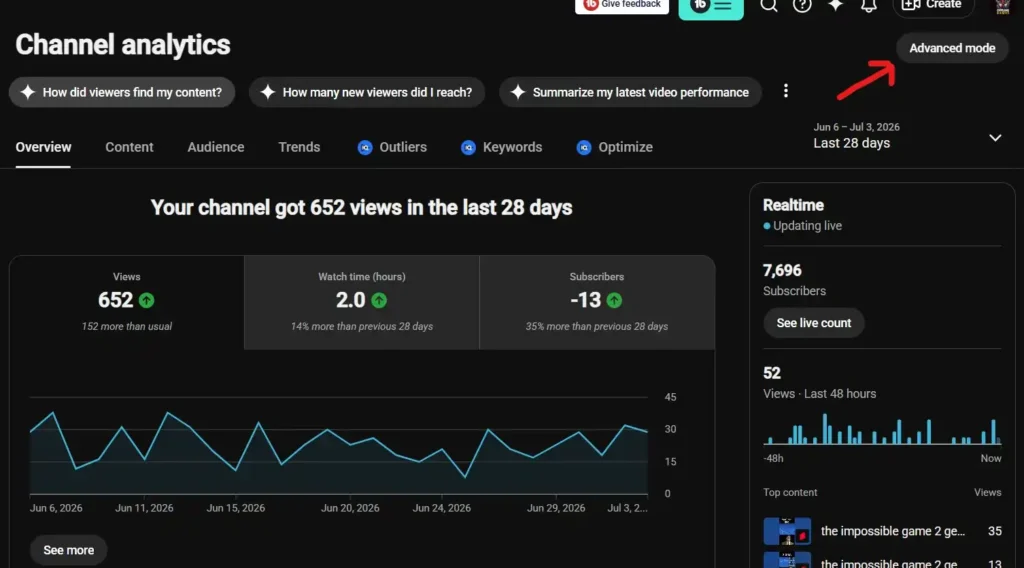
Now click Advanced Mode in the top-right corner.
This section gives you more detailed reports.
You can filter information by:
- Videos
- Countries
- Devices
- Traffic sources
- Date ranges
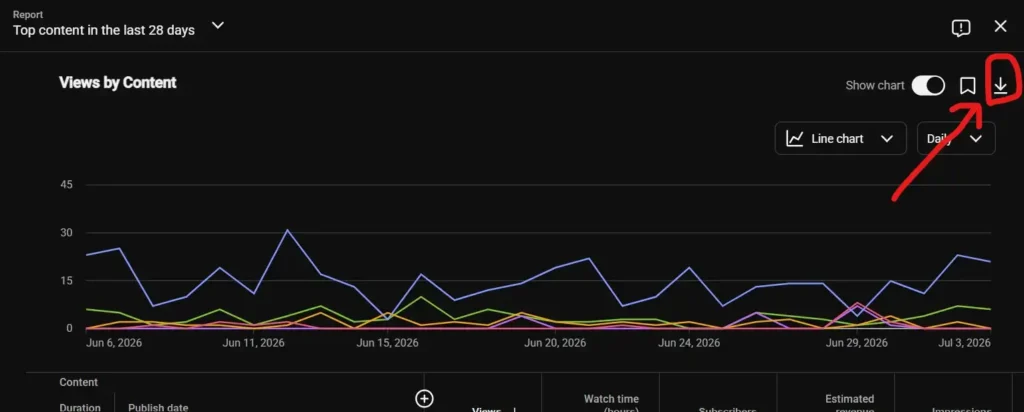
After choosing the report you want, look for the Export Current View button.
You’ll usually see two options:
- CSV
- Google Sheets
Select CSV and YouTube will download the file immediately.
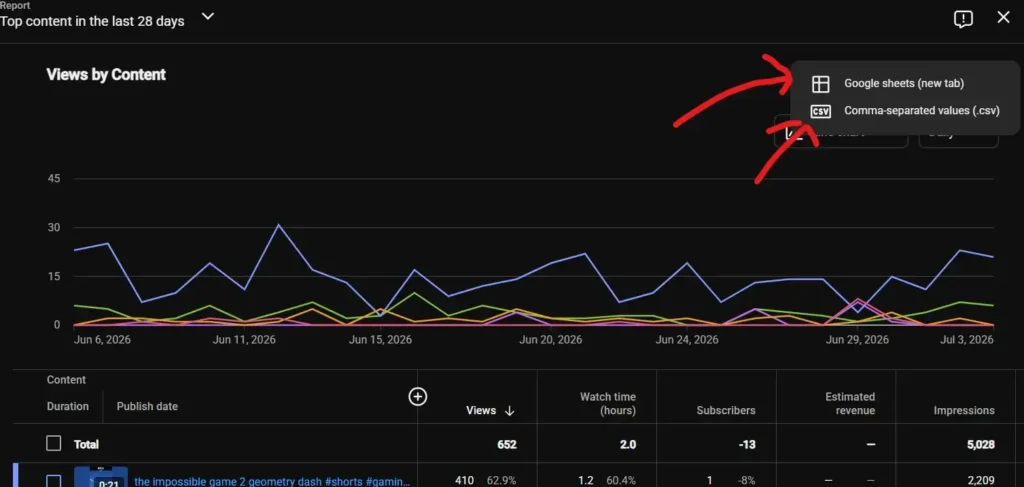
I’ve used this method many times when checking how videos performed over several months. It’s much easier to compare numbers in a spreadsheet than scrolling through the dashboard over and over again.
How to Get My YouTube Channel Data as CSV with Google Takeout
If you want more than analytics, Google Takeout is another option.
Google Takeout lets users download copies of data stored in their Google accounts.
Go to:
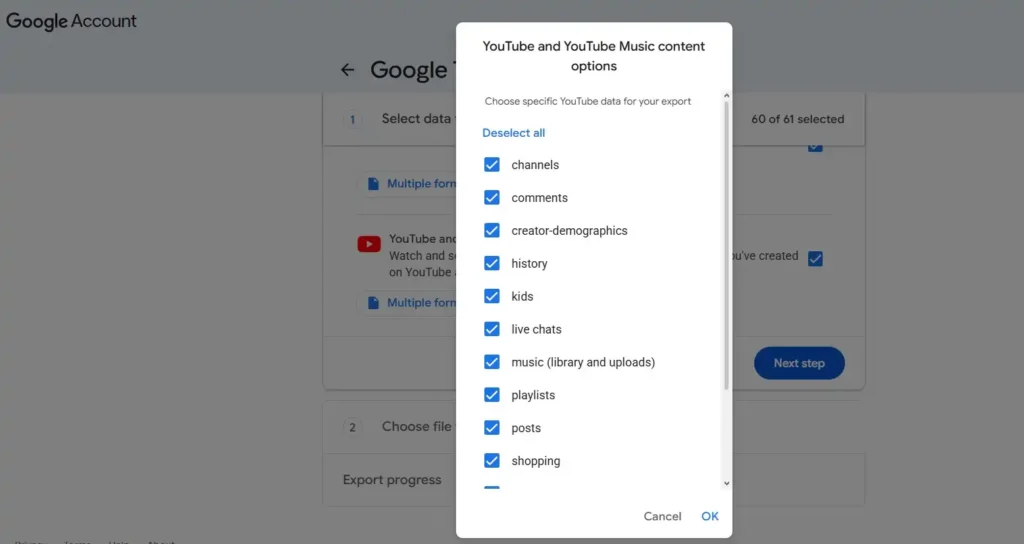
Sign in and scroll down until you see YouTube and YouTube Music.
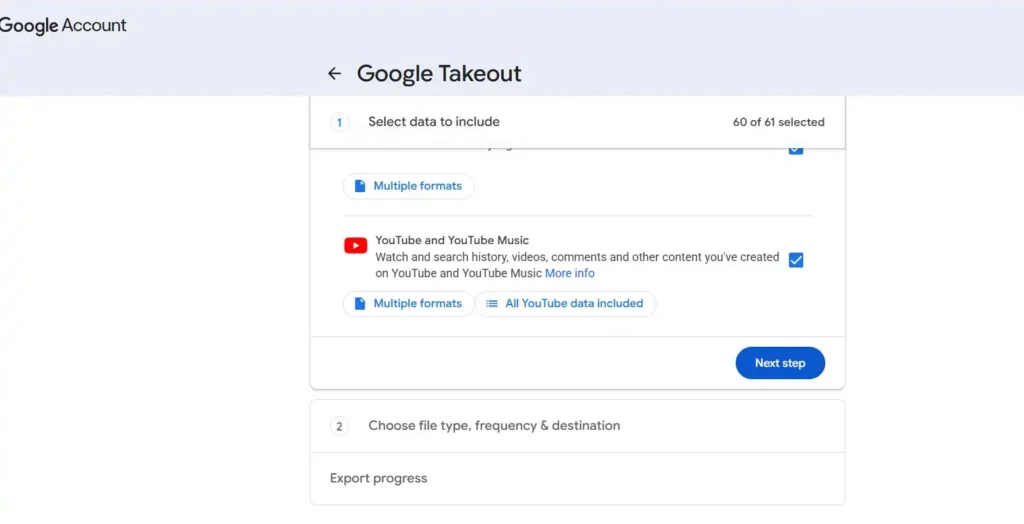
Click it and choose what you want to export.
You can include things like:
- Playlists
- Subscriptions
- Comments
- Uploaded videos
- Captions
- History
After that, choose where you want the export delivered.
Google can send it to:
- Google Drive
- Dropbox
- OneDrive
Then click Create Export.
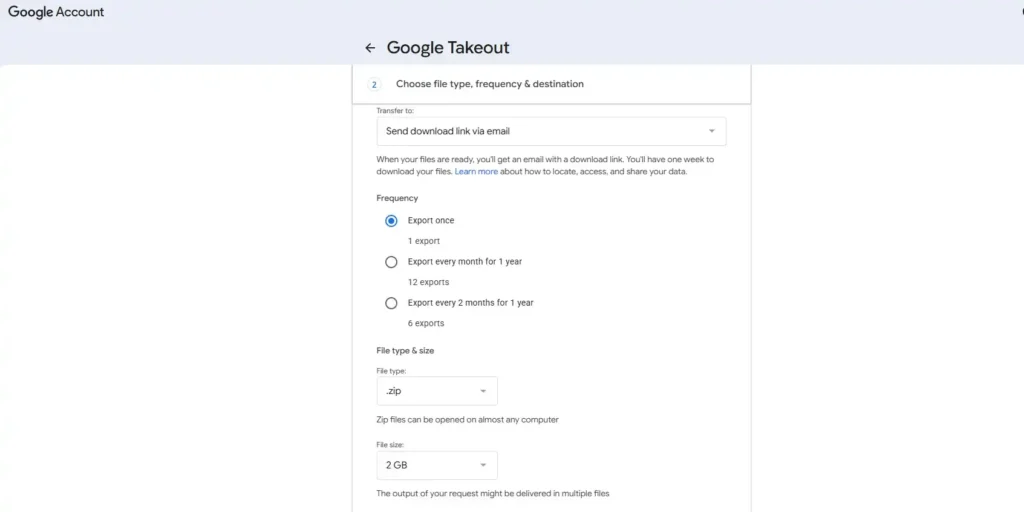
One thing many people don’t realize is that Google Takeout doesn’t always give you CSV files.
Sometimes you get ZIP folders.
Other times you get JSON files.
So if you’re mainly interested in analytics, YouTube Studio is usually the better choice.
Can You Export YouTube Analytics Reports?
Yes, and honestly, this is what most creators are looking for.
YouTube Analytics reports can include data such as views, subscribers, traffic sources, countries, and watch time.
Many agencies download these reports every month for clients.
Brands sometimes ask creators to provide performance reports before signing sponsorship deals.
Instead of sending screenshots, creators often share a CSV file because it looks more professional.
One nice thing about exporting reports regularly is that you start noticing patterns.
Maybe your videos get more views on weekends.
Maybe YouTube Search sends more traffic than Suggested Videos.
These little details can help improve future content.
Can You Export YouTube Comments as CSV?
People ask this question all the time.
Unfortunately, YouTube Studio doesn’t have a built-in button for downloading comments as CSV.
That doesn’t mean it’s impossible.
You can export comments from any video using tool Youtube Comment Finder free of cost.
Or Developers often use the YouTube Data API to collect comments and turn them into spreadsheets.
Researchers do this for sentiment analysis.
Businesses use comment exports to study audience feedback. You can also read how to find your YouTube Comments.
Community managers sometimes save comments for moderation records.
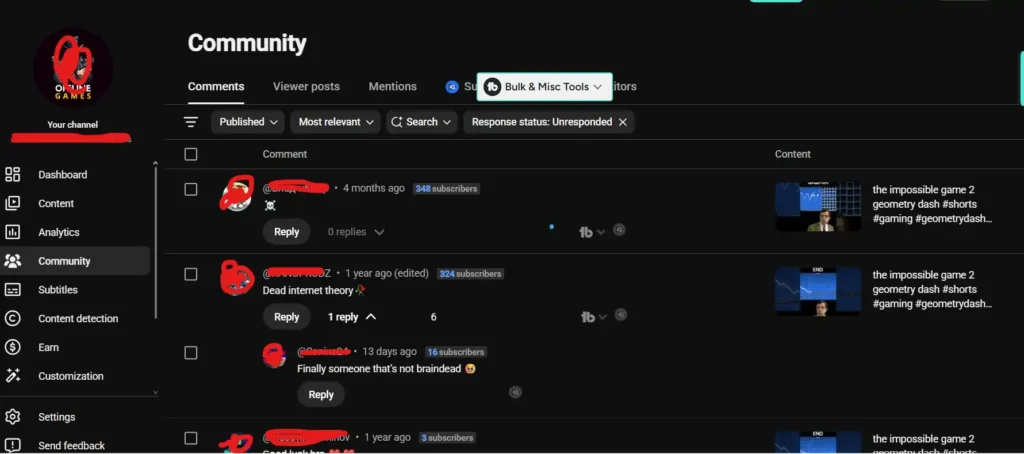
If you’re not comfortable with APIs, there are some analytics tools that support comment exports too.
Just be careful with random websites asking for account access.
Using the YouTube API for CSV Exports
The YouTube API is probably the most powerful option, but it’s also the most technical.
You need to create a Google Cloud project, enable the YouTube Data API, and generate credentials.
Once everything is set up, you can request information about videos, channels, playlists, and comments.
Then you can convert the results into CSV format.
Most creators won’t need this.
But agencies, developers, and researchers often use it because it gives them much more control over the data they collect.
What Data Can You Download?
The answer depends on which export method you’re using.
YouTube Studio works best for analytics.
Google Takeout is better for backups.
The API is great for advanced reporting.
Here’s a simple comparison.
| Data | Available as CSV? |
| Views | Yes |
| Watch Time | Yes |
| Subscribers | Yes |
| Revenue | Yes |
| Countries | Yes |
| Traffic Sources | Yes |
| Videos | Yes |
| Comments | Yes |
| Playlists | Yes |
| Channel Details | Yes |
For most creators, YouTube Studio covers almost everything they need.
Common Problems When Exporting Data
Sometimes people can’t find the export button.
Usually, that’s because they’re not inside Advanced Mode.
Another common issue is downloading the wrong date range.
I’ve done this myself before and spent five minutes wondering why my report looked so strange.
Google Takeout can also take a while.
Small channels may finish in minutes.
Large channels with years of videos might take several hours.
API users can run into quota limits too, especially if they request a lot of data in a short time.
Thankfully, most of these problems are easy to fix.
Final Thoughts
Learning how to get my YouTube channel data as CSV is useful whether you’re a creator, business owner, marketer, or researcher.
For most people, YouTube Studio is the fastest and easiest option. It only takes a few clicks to download analytics reports.
Google Takeout is better if you want a complete backup of your account.
And if you need advanced reporting, the YouTube API gives you the most flexibility.
Even if you don’t need reports right now, exporting your data once a month isn’t a bad habit. A few months later, you’ll probably be glad you kept those records.
Frequently Asked Questions
How do I get my YouTube channel data as CSV?
You can export your YouTube channel data as CSV through YouTube Studio Analytics. Open Analytics, switch to Advanced Mode, and use the Export button to download reports in CSV format.
Can I export YouTube Analytics to CSV?
Yes. YouTube Studio allows creators to export analytics reports as CSV files, including views, watch time, subscribers, traffic sources, and audience metrics.
Can I download YouTube comments as a CSV file?
YouTube Studio does not currently offer a direct comment export feature. Comments can be exported using the YouTube Data API or certain analytics tools that support CSV downloads.
Does Google Takeout export YouTube data as CSV?
Google Takeout can export some YouTube information, but not everything is provided in CSV format. Some data may be downloaded as JSON, HTML, or ZIP files.
Can I export subscriber data from YouTube?
YouTube provides subscriber metrics inside Analytics, but it does not allow creators to download personal information about subscribers for privacy reasons.
How often should I export YouTube analytics data?
Many creators export analytics monthly to track growth, compare performance over time, and keep historical records outside of YouTube Studio.
Can I open YouTube CSV files in Excel?
Yes. CSV files downloaded from YouTube can be opened in Microsoft Excel, Google Sheets, LibreOffice Calc, and other spreadsheet applications.
Is there a way to automatically export YouTube data to CSV?
Yes. Advanced users can use the YouTube Data API or third-party reporting tools to automate YouTube data exports and generate CSV files on a schedule.