Table of Contents
You’re scrolling through YouTube, click on a video, and scroll down expecting the usual pile of comments: hot takes, jokes, the occasional useful tip buried in the chaos. Instead, nothing. Just a blank space where the comment section used to be, or a small line that says “Comments are turned off.” Then you click another video. Same thing. And another. Same thing again.
That’s when the panic sets in. Did something break on your account? Did YouTube ban you from commenting? Is your internet doing something weird?
If you’re asking why are all my YouTube comments turned off, the honest answer is that it’s rarely just one cause. It could be a setting on your own device, something a creator did on their end, a platform-wide restriction, or, more often than people expect, a glitch tied to browser extensions. I’ve run into this myself more than once, and the fix is almost never complicated once you know where to look.
Let’s go through the real reasons this happens and how to get your comments back.
Why are all my YouTube comments turned off? Comments may disappear because of ad blockers, Restricted Mode, Made for Kids settings, creator preferences, browser extensions, app issues or temporary YouTube bugs. In many cases, refreshing the page or disabling extensions restores the comment section within seconds.
Why Are All My YouTube Comments Turned Off Across Every Video?
Before getting into each cause in detail, here’s the short version. Comments usually vanish for one of these reasons:
- An ad blocker is interfering with how the page loads comment data
- A temporary bug on YouTube’s end (this happens more than you’d think)
- The video is marked “Made for Kids,” which disables comments automatically
- The creator turned comments off manually, or paused them
- Restricted Mode is switched on, either by you, a school, or a managed device
- Your browser cache, an extension, or the YouTube app itself is misbehaving
- YouTube’s automated safety systems flagged the content or account
Some of these are confirmed, documented YouTube behaviors. Others are things users have reported widely without an official explanation from YouTube. I’ll be clear about which is which as we go, because it matters. You don’t want to spend an hour “fixing” something that was never actually broken.
Can Ad Blockers Cause YouTube Comments to Disappear?
This one’s been a hot topic lately, and if you run an ad blocker, it’s worth ruling out first.
Starting around February 2026, a wave of users began posting on Reddit and elsewhere that their comment sections and video descriptions had gone missing across nearly every video they watched, not just one channel, but the whole platform. Reports about this kept surfacing on and off through 2025 and into 2026, which is part of why so many people are still searching for answers on this exact problem. The common thread reported by multiple outlets was that everyone affected seemed to be running an ad blocker in their browser, and turning the blocker off brought the comments right back. You can also read how find your own comments on YouTube.
I’ve seen this play out on my own devices. Comments would show up just fine in Firefox, then disappear the second I opened the same video in Chrome with uBlock Origin running. Disable uBlock Origin, refresh, and the comment section pops right back like nothing happened. That kind of side-by-side test between browsers is honestly the fastest way to confirm whether an ad blocker is the culprit, rather than guessing at it.
AdGuard, one of the bigger ad-blocking companies, went as far as saying YouTube has intentionally turned off comments and descriptions for some ad-blocker users. That’s a strong claim, and it lines up with a broader pattern: the standoff between YouTube and ad blockers has been escalating since 2023, and this appeared to be the newest chapter in that fight.
Here’s the part worth being careful about, though: YouTube itself hasn’t put out an official statement confirming this is deliberate. Coverage from multiple tech sites has noted that YouTube has not confirmed whether the missing comments were caused by enforcement, testing, or a plain bug. So this falls into “strongly suspected, not officially confirmed” territory. Worth knowing, but not something to treat as gospel.
Think of it this way: the ad blocker connection is a community report, backed by a lot of consistent user testing, not a confirmed platform policy. That distinction matters if you’re trying to figure out whether this is something you can fix yourself or something you just have to wait out.
What you can actually do about it:
- Temporarily disable your ad blocker just for YouTube and reload the page
- If comments come back, you’ve found your answer
- Whitelist youtube.com in your ad blocker’s settings if you want comments back without fully disabling the extension everywhere
It’s a little annoying to have to choose between blocking ads and seeing comments, but at least it tells you the problem isn’t something wrong with your account. You can find, filter and analyze YouTube comments by using YouTube Comment Finder tool.
Why Did My YouTube Comment Section Suddenly Disappear?
Even without an ad blocker involved, Sometimes due to bugs where comments vanish and then come back on their own. This isn’t rare. Big platforms push updates constantly, and something occasionally breaks in the process. I’ve personally seen this happen right after a browser update, where comments were fine one day and just gone the next, with nothing else on my end having changed.
The good news is these bugs are usually fixed with basic troubleshooting:
- Refresh the page. Sounds too simple, but a huge number of reports describe comments reappearing the moment the page reloads.
- Fully restart your browser, not just the tab. Sometimes a cached version of the page is stuck.
- Sign out, then sign back in. This clears out session data that might be corrupted.
- Try Incognito or Private Browsing mode. If comments show up fine here, the problem lives in your regular browser profile, likely an extension or cached data, not your account.
- Check if it’s browser-specific. Try the same video in a different browser entirely. If comments load fine there, you’ve narrowed the issue down fast.
At first it feels like YouTube restricted your account, but that’s rarely what’s happening. A corrupted browser profile is a lot more common than most people assume. Chrome, Firefox, and Edge all store a pile of local settings, cookies, and cached scripts tied to your specific profile, and once that data gets tangled up, all kinds of small things break, not just comments. Creating a brand-new browser profile from scratch and logging back into YouTube there is a slightly more drastic fix, but it works surprisingly often when nothing else does.
It’s also worth checking whether the problem is desktop-only. A decent number of reports describe comments loading fine on the YouTube mobile app while the desktop site sits there blank or stuck on a loading spinner. If that matches what you’re seeing, the fix usually lives in your desktop browser rather than your account, since the mobile app is pulling from the same account without any trouble.
One thing worth noting: reports of this exact bug have affected multiple browsers at once, including Chrome, Brave, and Edge, so it’s not always isolated to one browser. That’s part of what made people suspect it wasn’t a coincidence and was tied to something systemic, like the ad blocker issue above. in Detail explained how to find comments posted years ago.
Videos Marked as Made for Kids Automatically Disable Comments
Check what kind of videos you’re watching before anything else. If it’s only happening on certain videos, especially kids’ content, family vlogs, or animated content, this is very likely the reason, and it’s a fully confirmed, intentional YouTube policy rather than a bug or a mistake.
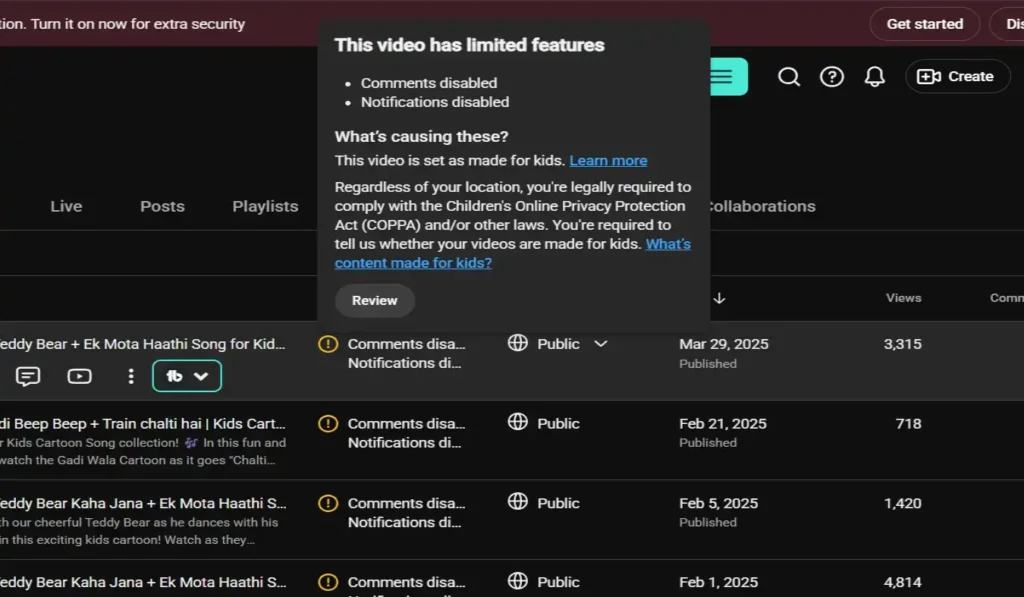
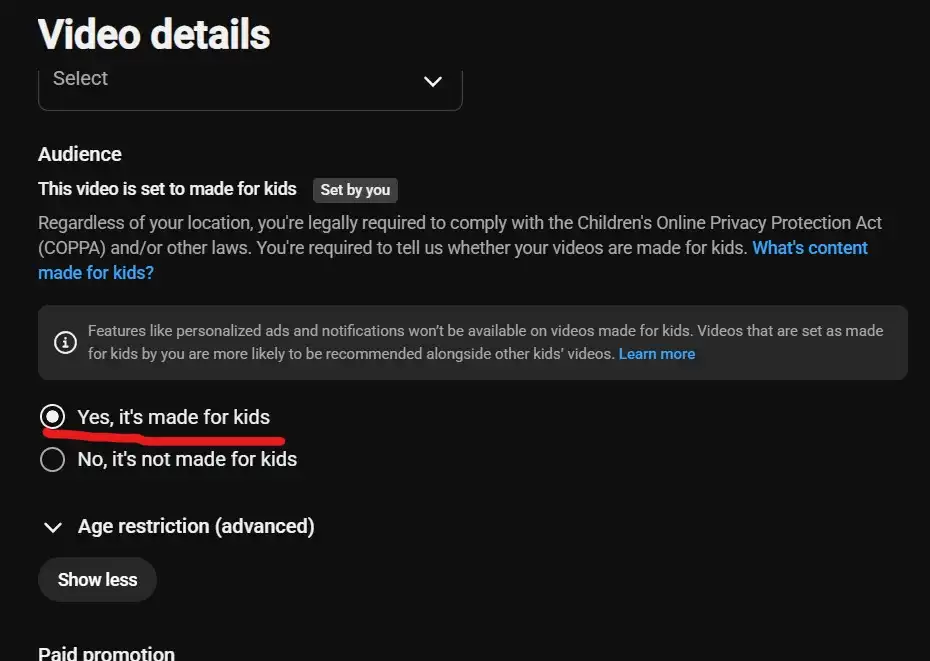
Under COPPA (the Children’s Online Privacy Protection Act), YouTube requires creators to mark videos as “Made for Kids” if the content is directed at children. Once a video gets that label, YouTube automatically disables several features to comply with child privacy law, and comments are one of them. Personalized ads, notifications, and some other interactive features get switched off too.
This isn’t a bug or a glitch. It’s baked into how YouTube handles child-directed content, and there’s no toggle to bring comments back on a video marked this way. If you’re a creator and you didn’t intend to mark a video as Made for Kids, you’ll want to check your settings:
- Go to YouTube Studio
- Open the specific video (or your channel-wide defaults)
- Look under the “Audience” section
- Confirm whether “Made for Kids” is switched on
- Adjust it if it was set incorrectly, keeping in mind YouTube uses its own detection too, not just your manual setting
If your content genuinely isn’t meant for kids but keeps getting auto-flagged, that’s worth double-checking in your video details, since YouTube’s system sometimes makes its own call based on content signals.
The Creator Turned Comments Off Manually
Sometimes there’s no mystery at all. The person who uploaded the video just doesn’t want comments on it. Creators disable comments for all kinds of reasons: avoiding spam, sidestepping controversy on a sensitive topic, or just not wanting to deal with moderation on a particular video.
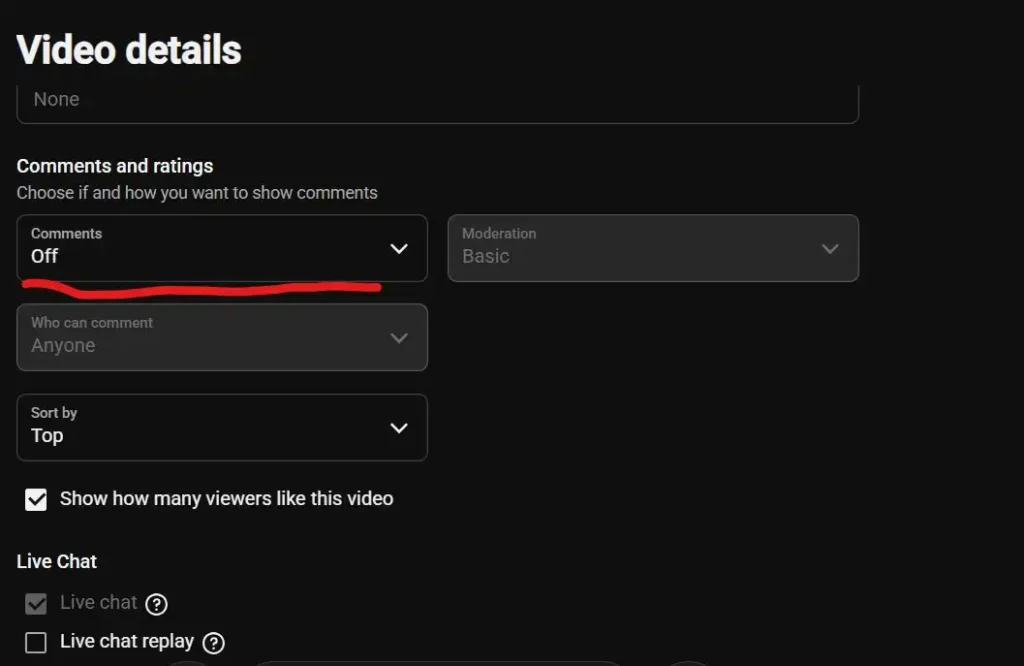
This is completely within a creator’s control. When someone disables comments, viewers simply see a message that comments are off, with no explanation required. This is different from comments being “paused,” which I’ll get into below, since the two look similar but mean different things.
If it’s happening across every video from one specific channel, that’s usually a moderation choice by the creator, not a platform issue.
YouTube Default Channel Settings Might Be Causing the Problem
If you’re a creator and comments seem off across your whole channel without you remembering turning them off video by video, check your default settings, since it’s an easy thing to overlook.
Here’s where to look:
- Open YouTube Studio
- Go to Settings
- Click Community
- Check Defaults
This is where you set what happens to comments on every new video you upload going forward. If this got changed at some point (maybe during a settings cleanup, maybe by accident), every new upload will inherit that setting automatically. Switching the default back to “Allow all comments” (or whatever fits your moderation style) fixes it for future uploads, though you may need to adjust older videos individually if they were already affected.
Restricted Mode Can Hide the Comment Section
Restricted Mode is a filtering feature meant to hide potentially mature content, and it has a side effect a lot of people don’t expect: it can hide comments on videos entirely, even if the video itself plays fine.
This tends to show up in a few specific situations:
- School networks. Many schools enable Restricted Mode network-wide so students can’t see certain comments or content.
- Family Link or supervised accounts. Parents managing a child’s account may have this switched on.
- Managed devices, like work laptops or shared family computers, where an admin enabled it at the network or account level.
To check if this is your issue:
- Scroll to the bottom of any YouTube page
- Look for “Restricted Mode” in the footer
- Click it and check if it’s toggled on
- Turn it off if you have permission to do so
If you’re on a school or work network, you might not be able to turn it off yourself, since that’s a setting controlled higher up, and there’s no way around it from your account alone.
YouTube’s Safety Systems Sometimes Disable Comments Automatically
Beyond Made for Kids labeling, YouTube runs automated systems that can restrict comments on certain videos without any manual action from the creator or viewer. This tends to happen with content the system flags as sensitive: things involving minors in any context, breaking news events, or topics prone to spam and abuse.
These automated restrictions are sometimes temporary, especially around trending or sensitive news events, where YouTube may limit comments platform-wide on certain video types until things settle down. This is a real, documented practice, though YouTube doesn’t always explain exactly which videos get flagged or why in real time. If comments are off on a video that seems unrelated to kids’ content but touches a sensitive subject, this is likely what happened.
Browser Extensions, Cache, or App Problems
Outside of ad blockers specifically, other extensions and general browser clutter can interfere with how the comment section loads. Privacy extensions, script blockers, and even some VPN browser add-ons can all quietly break parts of a page without any obvious error message.
Things worth trying, in rough order of how easy they are:
- Clear your browser cache. Old cached YouTube data can conflict with newer page versions.
- Update your YouTube app if you’re on mobile, since an outdated app version can cause display issues.
- Test another browser entirely you don’t normally use, with no extensions installed, to see if comments load normally there.
- Disable extensions one at a time rather than all at once, so you can pinpoint exactly which one is causing trouble.
- Reinstall the app on mobile if updating alone doesn’t help, since sometimes app data gets corrupted in a way a simple update won’t fix.
If comments work fine in a clean browser with no extensions but not in your normal setup, you’ve confirmed it’s something local to your browser, not YouTube or your account.
There’s also a milder version of this problem that’s easy to mistake for comments being off entirely: they just load slowly. This tends to show up right after YouTube rolls out an update, where the comment section takes several extra seconds to populate instead of appearing instantly. If you’re closing the tab or clicking away before it finishes loading, it can look identical to comments being disabled when really it’s just a slow fetch. Giving the page a few extra seconds before assuming the worst is worth doing.
Art Tracks and Auto-Generated Music Videos
If the videos with disabled comments all happen to be music, there’s a good chance you’re looking at auto-generated content from an Official Artist Channel, the kind of video that’s just album art with the song playing, often labeled “Provided to YouTube by [distributor].”
These auto-generated uploads are created through YouTube’s content management system rather than uploaded manually by an artist, and they frequently have comments disabled permanently by design. There’s no setting to change here on the viewer’s end. It’s simply how that category of content is set up, and it’s unrelated to any bug or account issue.
Comments May Be Paused Instead of Fully Disabled
There’s a difference between comments being disabled and comments being paused, and it’s easy to mix the two up as a viewer since they can look similar at first glance.
- Disabled means comments are turned off entirely. No new comments, and often existing ones aren’t visible either.
- Paused means existing comments stay visible, but no new ones can be added for the time being.
Creators use the pause feature when they want to freeze a comment section, maybe during a controversy, maybe just to take a break from moderating without deleting the discussion that’s already there. If you can still see old comments but can’t post a new one, that’s pausing, not a bug, and it’s a deliberate choice by the channel owner.
How to Fix YouTube Comments Not Showing
Here’s a practical checklist to work through, roughly in order of how likely each one is to be the culprit and how quick it is to try:
- Refresh the page
- Disable your ad blocker for YouTube
- Try another browser
- Clear your browser cache
- Update the YouTube app
- Disable browser extensions one at a time
- Turn off Restricted Mode
- Check your defaults in YouTube Studio (if you’re a creator)
- Test Incognito or Private Browsing mode
- Wait it out if it looks like a wider platform bug
Go through these one at a time instead of changing five things at once. That way you’ll actually know what fixed it, instead of guessing.
Final Thoughts
Missing comments almost never come down to one single cause. It’s usually one of a handful of usual suspects: an ad blocker, a passing bug, a Made for Kids label, Restricted Mode, or a setting the creator chose deliberately. The trick is testing one thing at a time instead of changing everything at once and hoping something sticks.
Most of the time, this clears up fast. A refresh, a disabled extension, or an ad blocker toggle solves it more often than not. If none of that works and it’s clearly tied to a wider platform issue, the most reliable move is just waiting it out, since these things tend to resolve within a day or two once YouTube sorts out whatever’s happening on their end.
Frequently Asked Questions
Why do comments disappear on every YouTube video I watch?
This usually points to something on your end rather than the videos themselves, most commonly an ad blocker, a browser extension, cached data, or Restricted Mode being switched on. If it’s happening across completely unrelated channels and video types, it’s rarely a coincidence tied to the videos.
Can ad blockers hide YouTube comments?
Multiple user reports and at least one ad-blocker company have pointed to this happening, particularly starting in early 2026. YouTube hasn’t officially confirmed it’s intentional, but disabling the ad blocker has fixed the issue for a lot of affected users, which is a strong signal even without an official statement.
Why are comments disabled on kids’ videos?
This is a confirmed policy tied to COPPA compliance. Videos marked “Made for Kids” automatically have comments, along with a few other features, switched off to protect children’s privacy online.
Can YouTube automatically turn comments off?
Yes, in a few specific and documented situations: Made for Kids labeling, automated safety systems flagging sensitive content, and default channel settings a creator has configured. These aren’t bugs. They’re built-in behaviors.
How do I restore comments on my own channel?
Start in YouTube Studio under Settings > Community > Defaults, and check that setting isn’t turned off. Then check the individual video’s settings too, since a single video can override your channel-wide default.