
Table of Contents
Have you ever remembered writing a comment on YouTube but had no idea where it went later?
Maybe it was a funny reply on a music video, an answer on a tutorial, or a comment you suddenly wanted to edit or delete. After a while, finding old comments can feel impossible, especially if you comment on lots of videos every week.
The good thing is that YouTube actually saves your public comment history. Most people just do not know where to look.
In this guide, you will learn how to find your comments on YouTube using desktop, mobile, and Google Activity. You will also learn why some comments disappear and how to search older comments faster.
If you want to search large YouTube comment sections faster, tools like YTCommentFinder can help filter comments by keywords and usernames.
How to Find Your Comments on YouTube Desktop
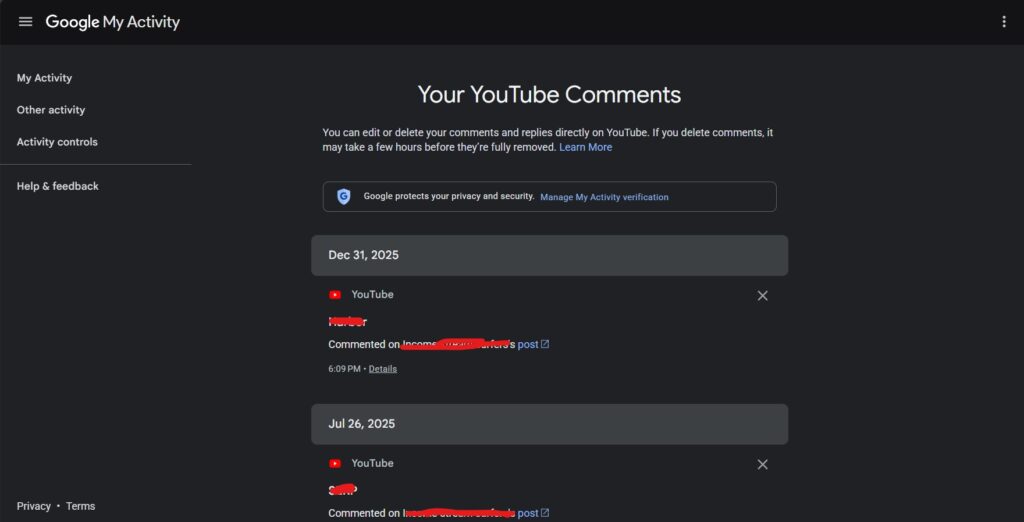
The fastest method is using YouTube’s built-in comment history page.
Open YouTube in your browser and sign into the Google account you used for commenting.
After that:
- Click the three-line menu in the top-left corner.
- Open the History page.
- On the right side, click Comments.
YouTube will now show all the public comments posted from your account.
Each comment includes:
- the video title
- your comment text
- a direct link back to the video
You can also directly open your comment history page here: YouTube Comment History
Google explains this feature in its official documentation too.
How to Find Your Comments on YouTube Mobile
The YouTube mobile app still does not include a proper comments history page.
But there is an easy workaround.
Open YouTube inside Chrome or Safari instead of the app. Then open your browser menu and request the desktop version of the website.
After that:
- open History
- tap Comments
- view your comment history normally
It takes a little longer than desktop, but it works on both Android and iPhone.
Find Your YouTube Comments Using Google Activity
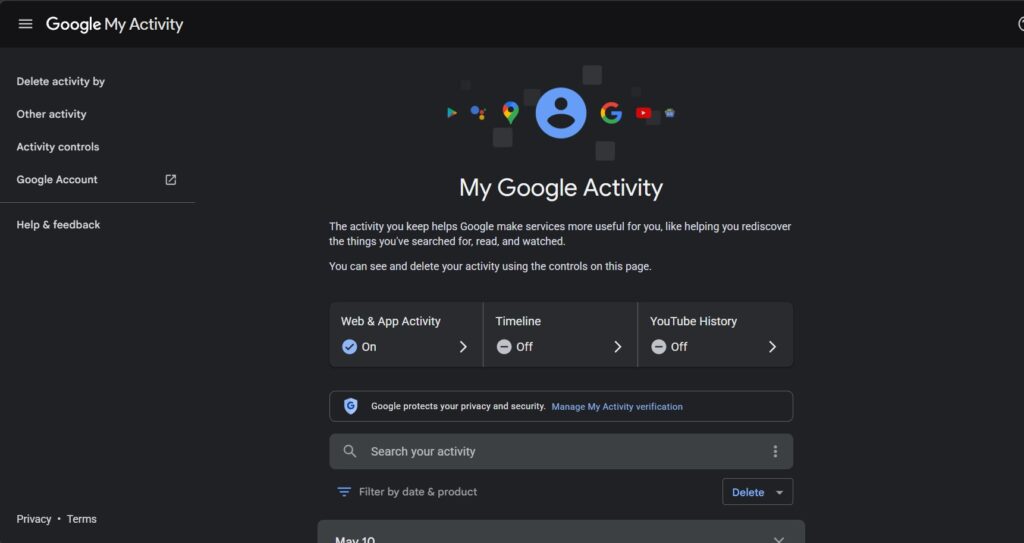
Another really useful method is Google My Activity.
Sometimes older comments appear there even when YouTube history feels incomplete.
Open: Google My Activity
Then:
- Click Filter by date & product
- Select YouTube
- Apply the filter
You can now browse YouTube activity connected to your account, including comments, watches, searches, and likes.
This method becomes especially useful if:
- you have used YouTube for many years
- you switched devices often
- your comment history page is loading incorrectly
Several large tutorial sites now recommend Google Activity as one of the easiest ways to recover older YouTube interactions.
Why Can’t I See All My YouTube Comments?
A lot of people notice that some older comments seem missing.
Usually this happens because:
- the video was deleted
- the creator removed the comment
- YouTube filtered the comment automatically
- you used another Google account
- the video disabled comments later
YouTube also removes comments that break platform rules or spam policies.
Some users have also reported cases where comments only appear under “Newest first” instead of “Top comments.” Discussions on Reddit mention that YouTube’s sorting system sometimes hides or limits visibility for certain comments.
If your history looks incomplete, check both:
- YouTube Comment History
- Google My Activity
using the same Google account.
If you manage multiple channels or Brand Accounts, make sure you are signed into the correct profile before searching.
How to Search for a Specific YouTube Comment Faster
If you have years of comments, manually scrolling through everything can take forever.
One easy trick is using browser search.
Press:
- Ctrl + F on Windows
- Command + F on Mac
Then type a word you remember from the comment.
Your browser will highlight matching text on the page instantly.
For example:
- a video name
- a phrase you wrote
- part of a reply
This makes older comments much easier to locate.
If you want to search comments from another user instead of your own account, this guide on finding YouTube comments by username explains how to search comments from a specific person across videos.
How to Edit or Delete Your Old YouTube Comments
Once you open a comment from your history page, YouTube lets you manage it directly.
Open the video, then click the three-dot menu beside your comment.
From there you can:
- edit the comment
- delete the comment
A lot of people are surprised by how many old comments they forgot were still public online.
If you delete a comment accidentally, YouTube may briefly show an undo option before it disappears permanently.
Why Some Comments Never Show Publicly
Sometimes people post comments but cannot find them afterward.
This usually happens because:
- YouTube spam filters removed them
- certain words triggered moderation
- the channel owner held comments for review
- YouTube shadow-filtered the comment temporarily
Some Reddit users have reported comments appearing only under “Newest first” while remaining hidden under “Top comments.”
This is one reason creators often switch comment sorting while checking discussions.
Can You Download Your YouTube Comment History?
YouTube itself does not offer a simple export button for comments.
But Google Takeout can export some YouTube account activity.
This can help if you want a backup of your account data.
For creators and researchers, external comment search tools are usually faster for large-scale searches.
Some tools can:
- search comments
- filter keywords
- sort replies
- export comment data
That becomes useful when researching audience feedback or video discussions.
How Creators Use Old Comments for Video Ideas
Old YouTube comments are actually one of the best places to find future content ideas.
After checking comments across several videos, creators usually start noticing repeated questions and phrases.
One viewer asks:
“Does this work on mobile?”
Another says:
“Can you make a beginner version?”
Those repeated questions often reveal exactly what viewers still need help with.
That is why many creators now use comments as a form of audience research and keyword discovery.
If you want to learn more about that process, this guide on searching for keywords in YouTube comments explains how creators use comment sections to discover repeated phrases and future video topics.
TubeBuddy also mentions that audience language inside comments can help creators discover more natural content ideas and keywords.
What If You Cannot Find a Comment You Posted?
Sometimes people clearly remember posting a comment but still cannot locate it anywhere.
Before assuming it disappeared completely, check:
- whether you used another Google account
- whether the video still exists
- whether comments were disabled
- whether YouTube filtered the comment
If you are specifically trying to recover one older comment again, this guide on finding a comment you posted on YouTube explains additional ways to track it down faster.
Final Thoughts
Most people never think about YouTube comment history until they suddenly need an old comment again.
Luckily, YouTube already stores your public comments in one place, even though the feature is a little hidden.
Once you know where the history page and Google Activity tools are, finding older comments becomes much easier. And for creators, old comments can become more than just replies. They often turn into useful feedback, keyword ideas, and future content inspiration too.
FAQs
How do I find my comments on YouTube?
Open YouTube History and click the Comments section to view all your public YouTube comments from your account.
Can I see old YouTube comments from years ago?
Yes, older comments can often still be found through YouTube Comment History or Google My Activity.
Why are my YouTube comments missing?
Comments may disappear if the video was deleted, the creator removed the comment, or YouTube filtered it automatically.
Can I delete old YouTube comments?
Yes. Open the original video from your comment history page and use the three-dot menu beside your comment to delete or edit it.
Can I find my YouTube comments on mobile?
Yes, but you usually need to open YouTube in a mobile browser and request the desktop version to access full comment history.