
YouTube Thumbnail Resizer
Instantly resize, crop, and enhance any image into the recommended YouTube thumbnail dimensions (1280x720). Rotate, drag, up-scale, expand backgrounds, and check safe areas completely in your browser.
Drag & Drop Image Here
or click to browse from your device
Supports JPG, PNG, WEBP. Paste screenshots (Ctrl+V) directly!
Batch Images (Switch between files)
Crop & Fit Position
Aspect Ratio & Safety
AI Image Enhancements
Export Options
Live Feed Previews
Check how your thumbnail looks in real YouTube layouts before downloading

This is a highly clickable video title that catches a lot of attention!
Creator Studio • 15K views • 2 hours ago
This is how your video title and thumbnail display on smartphones
Creator Studio • 1.2M views • 1 day ago
Upload an image to analyze contrast, brightness, and mobile reading scores.
The widescreen crop: why uploaded covers look blurry
Here’s something I threw together a couple years ago out of pure frustration. I was uploading a gaming tutorial, checked the thumbnail on my phone, and the main text was just… gone. Cropped right off. That’s why I eventually built my own YouTube Thumbnail Resizer. Not because I wanted to launch another online tool. Because I kept wrecking my own click-through rate with thumbnails that looked fine in editing software but fell apart after upload.
Why Thumbnail Size Matters More Than You Think
YouTube recommends 1280x720 pixels with a 16:9 aspect ratio. That’s not a suggestion. If you upload anything else, YouTube forces a resize on its end. And it does a terrible job.
I learned this the hard way. A review video had 12 percent CTR for the first hour. Then I noticed the thumbnail looked stretched. The game logo turned into a wide blob. People stopped clicking. By the time I fixed it, the algorithm had moved on.
The real problem is mobile viewing. Over 70 percent of my audience watches on phones. A 1280x720 thumbnail shrinks to about 360 pixels wide on a typical phone screen. If your text is smaller than 20 pixels, no one can read it. If important elements are near the edges, YouTube crops them automatically.
Blurry thumbnails happen when you upscale a small image. Stretched images happen when you ignore aspect ratio. File size issues get your thumbnail rejected entirely. I’ve seen all of these. Multiple times.
What This Tool Actually Does
You drag an image in. The tool checks its dimensions. Then it resizes to exactly 1280x720 while keeping proportions. That usually means black bars unless you use the crop controls.
Most people want to fill the frame. So the resizer shows a crop box. You move it until the important parts are centered. Click apply. Download.
No manual math. No opening Photoshop just to change canvas size. It saves five to ten minutes per thumbnail.
Features People Actually Use
Smart crop is my favorite. I often take a vertical phone screenshot and need to turn it into a horizontal thumbnail. Smart crop detects the main subject and keeps it centered when switching aspect ratios.
AI upscale handles low quality screenshots from older games or compressed clips. It adds detail back instead of making the blur bigger. I ran a blurry Elden Ring screenshot through it once, and the armor textures looked readable.
Sharpening after resize fixes soft edges. One pass makes text crisp again.
File size optimization keeps you under YouTube’s 2MB limit. High quality PNGs often hit 5 or 6MB. The tool reduces size without ruining quality.
Mobile and desktop previews let you see exactly how the thumbnail will look before download. That’s when you notice tiny text or a cropped face.
Drag and position controls let you nudge the crop area pixel by pixel. The before-after comparison toggles between original and resized so you spot quality loss.
Real Situations Where It Helps
Turning a vertical screenshot into a thumbnail happens all the time. You capture something awesome on your phone. The resizer crops to 16:9 and upscales so you don’t lose detail.
Tutorial videos need readable text on screen. I resize the screenshot, then check the mobile preview. If text looks tiny, I go back and enlarge it in the original before resizing again.
Improving low quality screenshots works for older games or video calls. A 640x480 Zoom glitch screenshot came out looking terrible. AI upscale brought it to 1280x720 without pixelation.
Fixing blurry thumbnails after editing happens when you export from your video editor at the wrong settings. Instead of re-rendering, I run the blurry thumbnail through the resizer with sharpening, and it looks acceptable.
How the Tool Handles Your Images
Everything runs in your browser. Nothing gets uploaded to my server. You drag an image, your computer does the processing using local code, and you download the result. I don’t see your images. I don't store them. No account, no email, no credit card.
This matters because thumbnails often contain unreleased game footage, client work, or your face. Processing is temporary. Close the tab and everything resets.
How to Use the YouTube Thumbnail Resizer
Here’s what actually happens when you open the tool. Follow these steps:
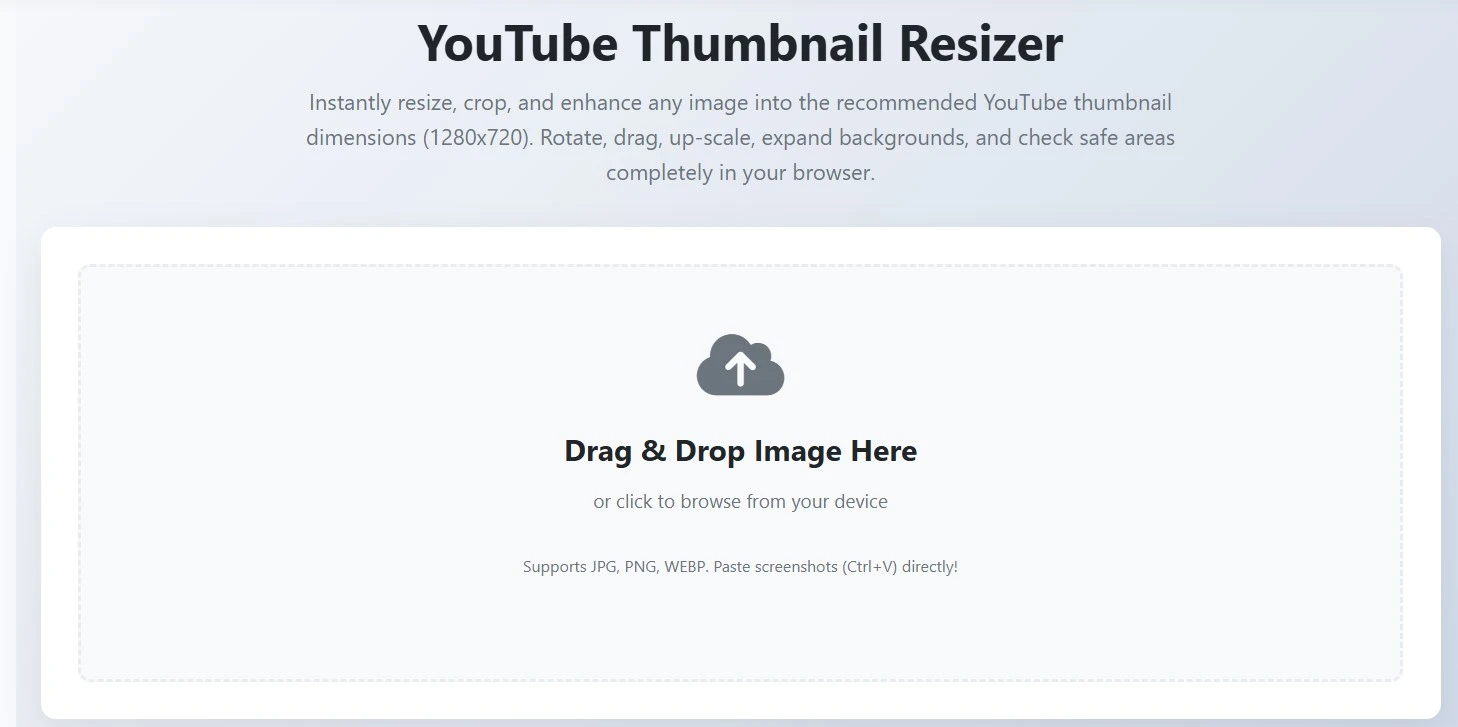
- Drag your image onto the drop zone. The tool immediately shows a preview and reads the dimensions.
- Check the aspect ratio indicator. If it says 16:9 and size is near 1280x720, you may only need a quick crop. If it shows 4:3 or 1:1, the tool automatically suggests a crop to fit YouTube’s standard.
- Move the crop box to center the main subject, text, or face.
- Toggle the mobile preview. This shrinks the view to simulate a phone screen. If text is too small or a face gets cut off, adjust the crop box.
- Check the desktop preview side by side for comparison.
- Turn on AI upscale only if your original image is below 1280x720. It adds detail back and prevents blur.
- Use the sharpen slider. I set it to 30-40 percent for crisp text without a crunchy look.
- Let file size optimization run automatically. It keeps you under YouTube’s 2MB limit. Choose JPEG for most thumbnails or PNG if you need a transparent background.
- Click download. The file saves with “_1280x720” added to the name so you don’t confuse it with the original.
From drag to download, it usually takes less than two minutes.
Honest Limitations
This tool will not replace Photoshop or GIMP. If you need layers, masks, or complex text effects, use real editing software. The resizer handles dimensions, cropping, upscaling, and sharpening. That’s it.
For creating text layouts with styled outlines, our YouTube Thumbnail Text Generator is a great companion. If you want to check out how other creators frame their covers, you can run their links through the YouTube Thumbnail Downloader to save their files and inspect their layouts.
It cannot magically fix a 320x240 JPEG from 2007. AI upscale helps, but garbage in limits what comes out. You cannot add detail that never existed.
Some images have important content at all four edges. No cropping algorithm can save that. You either lose something or keep black bars. The tool gives you options but can’t create new content.
What YouTube Actually Recommends
YouTube’s own official guidelines specify 1280x720 with a 16:9 aspect ratio and a 2MB file size limit. I keep the official YouTube Help guidelines bookmarked because they update requirements occasionally.
For general image optimization principles, the Google web dev guide explains why resizing and compression matter for loading speed.
The Bottom Line
I built this YouTube Thumbnail Resizer because I got tired of redoing thumbnails. It handles one specific job: getting your image to the right dimensions without distortion or quality loss. It won’t design your thumbnail for you. It won’t write clickbaity text. But it will stop YouTube from mangling your carefully crafted image after upload.
Try it with your next thumbnail. See if your click-through rate stops dropping for no obvious reason. That’s the only metric that matters to me.
Frequently Asked Questions
The recommended dimensions are exactly 1280x720 pixels, with a 16:9 aspect ratio. The minimum width should be 640 pixels, and the file size must be under 2MB in JPG, WEBP, or PNG formats.
No. This tool processes your images entirely inside your browser's local memory using HTML5 Canvas. Your images are never uploaded, stored, or shared. It is completely private and secure.
If you upload a vertical image, the tool automatically clones it, scales the copy to fill the 16:9 ratio in the background, applies a cinematic blur, and puts your original sharp photo in the center. This turns a phone picture into a widescreen cover without cropping the top or bottom.
Yes. You can drag and select multiple files at once. They will appear in our batch manager at the bottom of the canvas, letting you switch between them, customize each layout, and download them quickly.