
YouTube Community Post Image Downloader
Use our free tool to view and download images from any YouTube Community Post. Simply paste the post URL to fetch high-quality images instantly.
About YouTube Community Post Image Downloader
If you spend enough time watching videos, you've probably noticed that creators use the community tab a lot more now. They post schedules, behind-the-scenes photos, fan art, and memes. According to the official YouTube Help guidelines, creators can share posts, polls, images, and GIFs to engage their audience. But if you actually want to save one of those pictures, you run into a really annoying problem. YouTube does not give you a way to download them.
If you try holding down on a picture in the mobile app, nothing happens. If you are on a computer, right-clicking usually just gives you a basic menu that doesn't actually let you save the raw file. For a long time, my only option was to take a screenshot.
Taking a screenshot sounds fine until you actually do it. You have to crop out your phone's battery icon, the time, and all the app buttons. Worse, screenshots completely ruin the image quality. If a creator posts a detailed schedule or a picture with small text, taking a screenshot makes it so blurry you can barely read it. That frustration is exactly why I built the YouTube Community Post Image Downloader. I needed a simple way to get the actual picture without losing any quality.
What the Tool Does
This tool does exactly what the name says. You paste a link to a community post, and it goes directly to YouTube's servers to find the original image file the creator uploaded.
Instead of dealing with compressed screenshots, you get the uncompressed, original resolution image. You can check the MDN Web Docs image format guide to see how different compression standards affect PNG and JPEG files. Sometimes creators upload massive 4K pictures to their community tab. The YouTube app scales these down to fit your screen, but this tool skips the app and pulls the raw file. It handles single images and even those posts with multiple pictures in a carousel.
How to Download Community Post Images
I kept the design as simple as possible. You don't need to install any apps or browser extensions. Just follow these steps:
- Find the community post you are looking at on your phone or computer.
- If you are on your phone, tap the share button below the post and tap "copy link".
- If you are on a computer, click the time stamp on the post (the small text that says "2 hours ago" or similar). This opens the post on its own page so you can copy the URL from your browser's address bar.
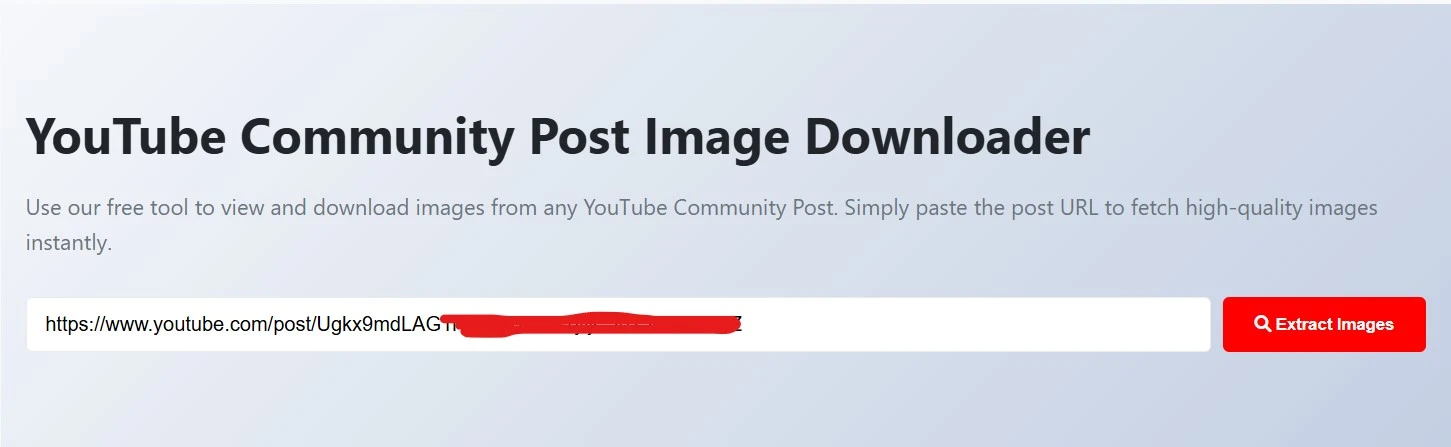
- Paste that link into the search box at the top of this page.
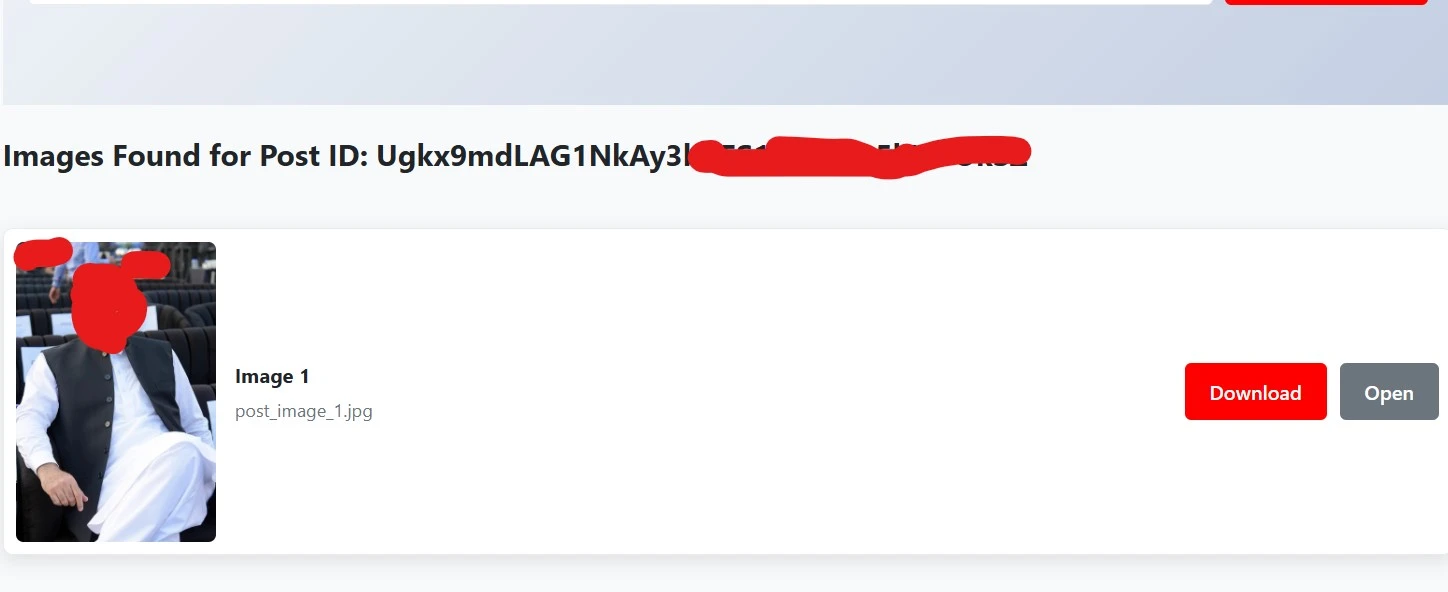
- Click the extract button and save your image.
Features and Honest Limitations
One of the most useful things about this tool is how it handles multiple photos. Creators often post a carousel of up to five pictures at once. If you paste a link to a carousel post, the tool automatically finds every single image attached to it. They all line up on the screen, and you can pick which ones you want to keep.
It is also incredibly fast. Because it just reads the background data of the page, it does not need to load bulky scripts. It works quickly even on a weak mobile connection.
As for limitations, it only works on public community posts. If a creator deletes a post or makes it for members only, the tool won't be able to read it. It relies on being able to see the public page just like a normal viewer would.
Real Situations Where This Helps
I originally built this because I wanted to save funny memes to my phone. But I quickly realized it is super helpful for other things.
Tech channels often post giant spec sheets comparing new phones. Musicians post huge lists of tour dates. Game developers drop patch notes as images. Trying to zoom in on a compressed phone screenshot of a spec sheet is a headache. When you use this tool to download the original file, you can open it in your photos app and zoom in as much as you want. The text stays perfectly sharp because you are looking at the exact file the creator uploaded.
Privacy and Safety
I strongly believe in keeping tools clean and private. You do not have to make an account to use this site. There is no email signup and no hidden paywalls.
When you paste a link, the server just reads the public YouTube page, extracts the image links, and sends them directly to your screen. The images are not saved to any database here. It is just a straight connection between you and the public file. If you need to download video covers from other creators, you can use our YouTube Thumbnail Downloader. If you want to prepare your own community images, you can scale them using our YouTube Thumbnail Resizer.
One thing to keep in mind is respecting the creators. Downloading an image for your personal use as a wallpaper or sharing a meme in a group chat is totally fine. But if an artist uploads an original drawing, do not download it and repost it somewhere claiming it is yours. Always give credit where it belongs.
Frequently Asked Questions
No, the tool is completely free. You don't have to create an account, log in, or give out your email address. Just paste the link and get your picture.
Yes. It works in any standard web browser on your phone, tablet, or computer. You don't need a special app.
The tool pulls the original, uncompressed file that the creator uploaded. If they uploaded a 4K image, that is exactly what you get, which is much larger and clearer than a mobile screenshot.